


Duration of the event/Activity period
Second band:2026/4/25 - 2026/10/31
Activity Task Description
After entering the “Jianxing Notes App”, click on “Tasks” to access the special section for the “2026 Hualien Mountain and Sea Adventure” event. Select the treasure-hunting route, then start walking or biking to collect virtual gemstones and complete the tasks along the trail.
You know the operation report.
Just follow the steps below to get started easily!
| Important reminder 1: When logging into the “Jianxing Notes” app using Facebook or LINE, the system will recognize them as two separate accounts. If you want to keep all your task completions and scores under the same account, please continue to log into the app using the same method each time. (If you’re using Facebook, keep using Facebook for logging in. If you switch to LINE for logging in, the system won’t merge your scores from your Facebook account.) |
| Important Reminder 2: All tasks in the Hiking Notes APP are independent challenges. The APP can only handle one task at a time. If parts or the entire routes of two tasks overlap, and you want to obtain the gems for both tasks, you’ll need to complete each task twice. If the system crashes or the GPX files are lost due to improper handling of tasks, the organizers will not issue replacement gems. Please follow the game rules. |
| Important Reminder 3: If you plan to complete the gem-related tasks in installments, please be aware of this! Please remember to save and upload each record after completing it. Only in this way will your achievements be accumulated over time. If the time between two recordings exceeds one month, please go to “My Page” > “Offline Tasks”, delete the offline tasks, and download them again. The records and gems that have been uploaded are tied to the account. Deleting “Offline Tasks” will not affect the gems that have already been obtained. Please rest assured. |
| Important reminder 4: To ensure the fairness of the event, all participants must use “bicycles” to complete the challenges. The system will automatically verify and discard any task records that appear suspicious or irregular. |
| Step 1: Download the Hiking Notes app. |
Android system download link: bit.ly/2KLrdp3
iOS system download link: apple.co/2KLs3Cd
Important Reminder 1: Please allow the Hiking Notes App to use your phone’s location data: “Always Allow” (iOS) / “Always Permit” (Android). Refer to the diagrams below for how to set this up. This is very important as it determines whether you can successfully obtain the gems. Since there are many different phone models on Android, the setup may vary slightly. If your phone doesn’t have the “Always Permit” option, please make sure that location services are enabled.
Important Reminder 2: While using the app, do not enable power-saving mode due to battery consumption. This can also affect your ability to obtain animal stamps. It’s recommended to bring a power bank along!
iOS Location Settings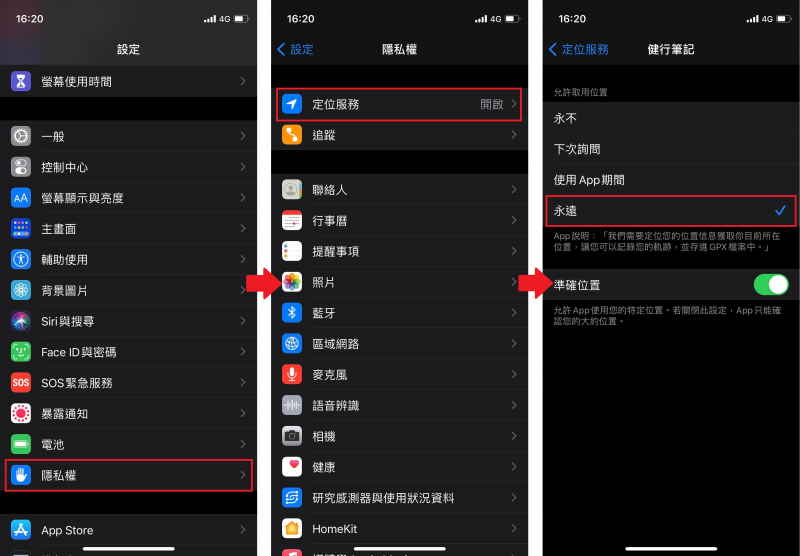
Android Location Settings
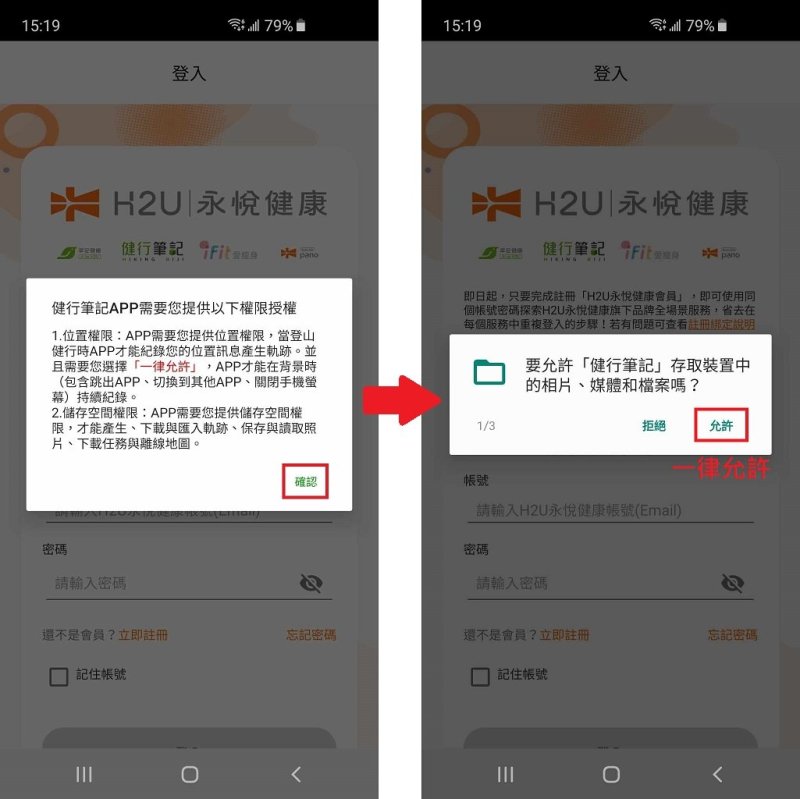
Important Reminder 3: When logging into the Hiking Notes app using Facebook or LINE, the system will recognize them as two separate accounts. If you want to keep all your task completions recorded under the same account, please use the same login method (either Facebook or LINE). If you use different accounts for logging in, your task completions won’t be combined. (If you use Facebook, please continue to use it for logging in. If you switch to LINE, the system won’t merge your achievements from your Facebook account.)
Step 2: Enter the “2026 Hualien Mountain and Sea Adventure” event. |
1.At the bottom of the home page, click on “Tasks”. Then, select the task “2026 Hualien Mountain and Sea Adventure”. Go to the details page to read the event description. Click on “Sign Up for the Event” and complete the registration process.
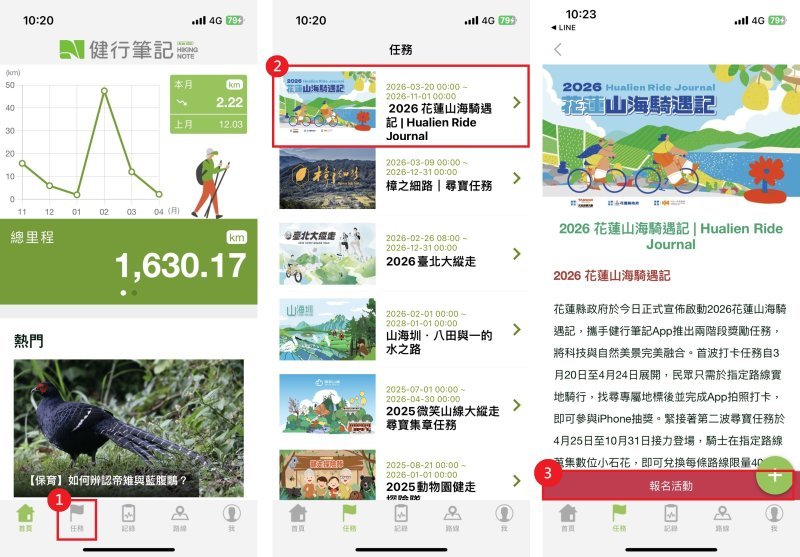
2. After accessing the homepage and reading the details of the event, click “View More” at the bottom of the page. Then, select the “trail” you wish to challenge. This step uses the “Azure Two Pools Dawn Trail” as an example.
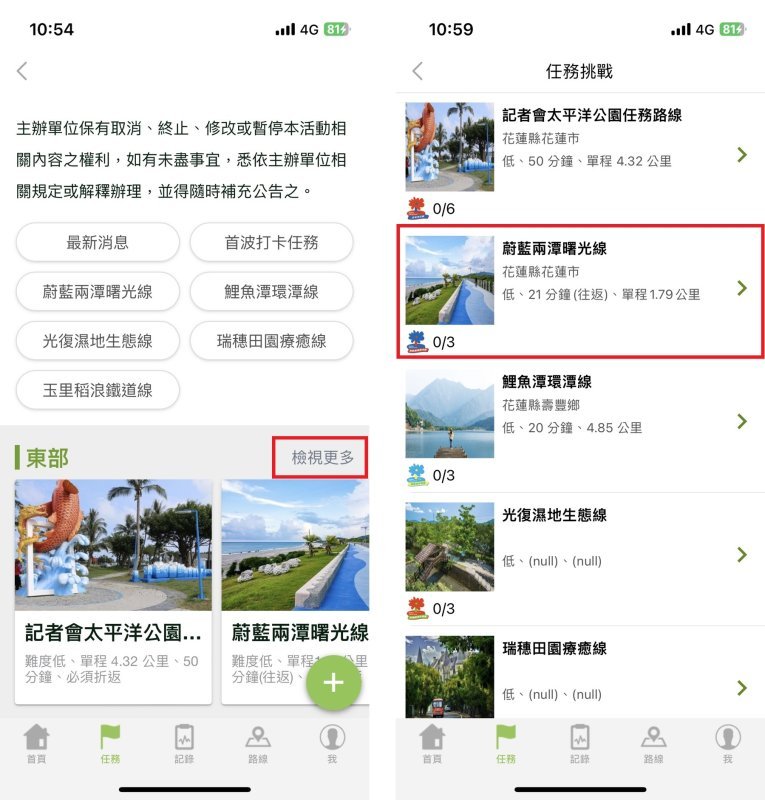
3. After entering the trail information screen, scroll down after reviewing the trail details. Be sure to select “Download Offline Data”. “Offline” means that the map and route information are downloaded and stored in the app. This way, you won’t need an internet connection while using the app. In addition to saving battery life, this feature also helps avoid situations where poor network signal in the mountains makes it impossible to view the map.
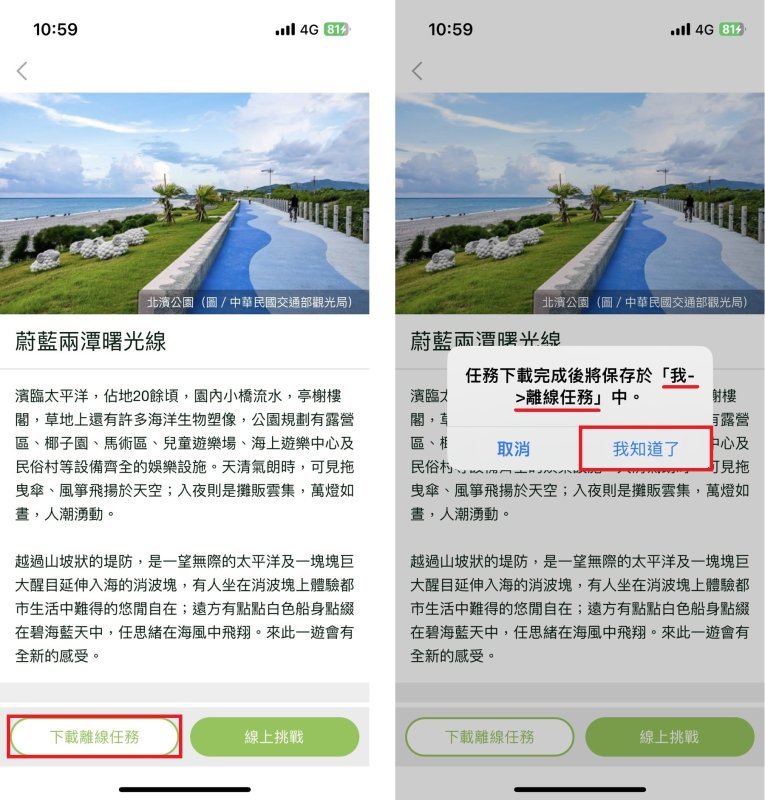
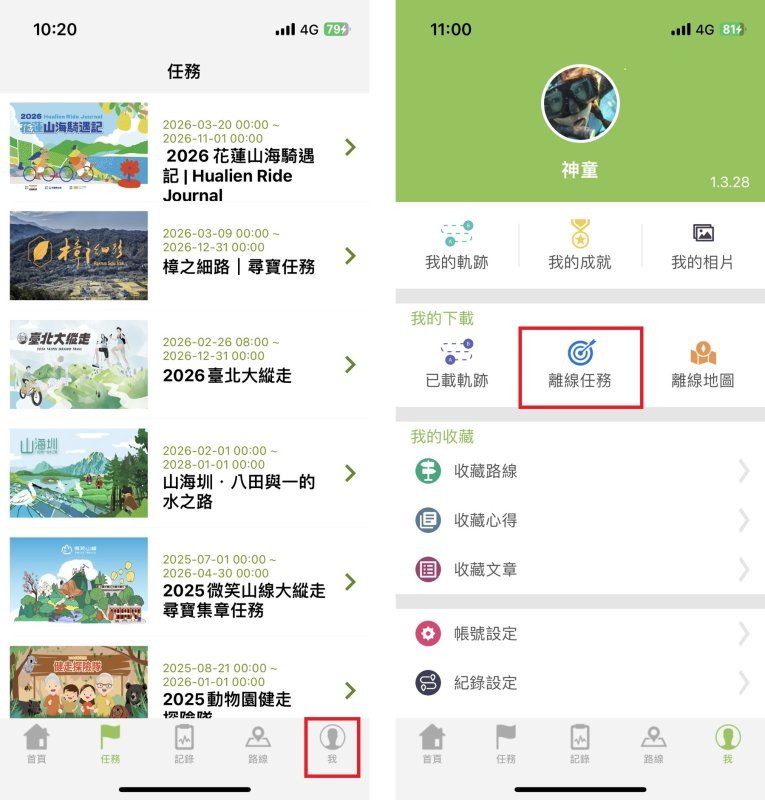
4. After the offline tasks are downloaded, press the “Back” key (<) to return to the main page. At the bottom of the page, select “Me” > “Offline Tasks”. There, you’ll find the offline tasks that were just downloaded.
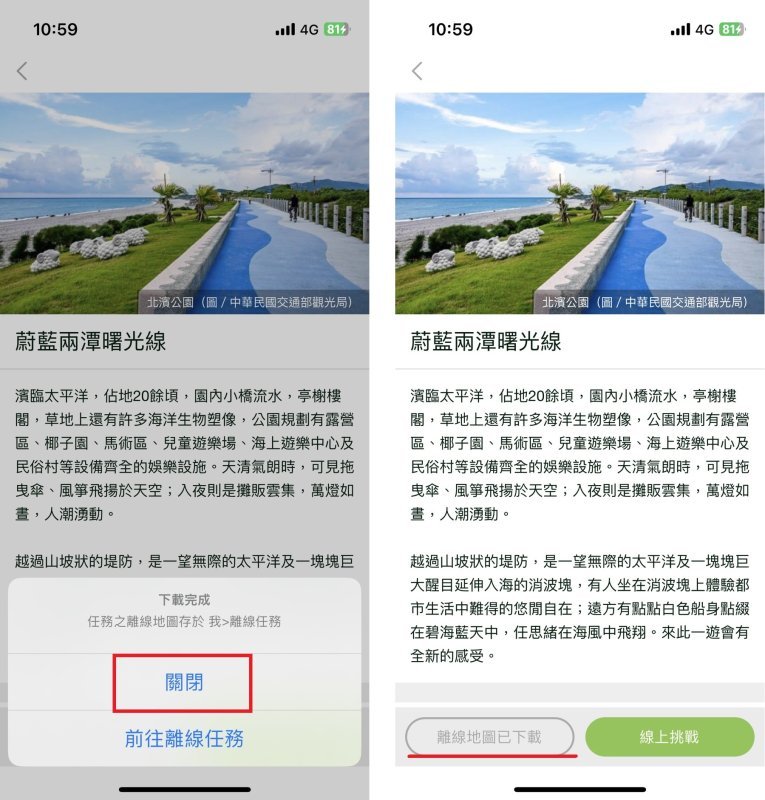
Step 3: Find the offline tasks that have been completed downloading. |
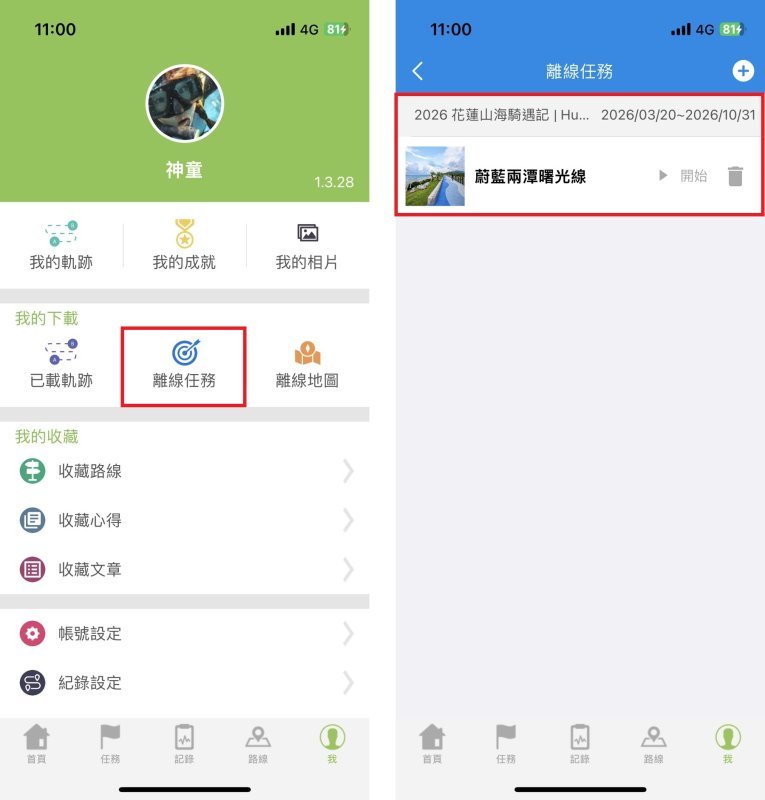
After returning to the page, click on “Me” at the bottom. Then, go to “Offline Tasks”. There, you’ll find the file you just downloaded: “Azure Two Pools Dawn Line”.
The iOS system downloads both the GPX files and the maps for offline tasks at the same time. So, you’re all set to start the task now!
Although the GPX files for the offline tasks have already been downloaded in the Android system, one more step is required: downloading the full Taiwan Lu map. If the app hasn’t previously downloaded the Taiwan Lu map, go to the “Download Full Taiwan Lu Map” option at the bottom of the offline tasks page. You can scroll down from the top of the screen to see the download progress. If the Taiwan Lu map has already been downloaded earlier (if you’ve completed the tasks before), there’s no need to download it again. However, if there’s a newer version available, you can choose to update the map when the network connection is stable (though this isn’t necessary).
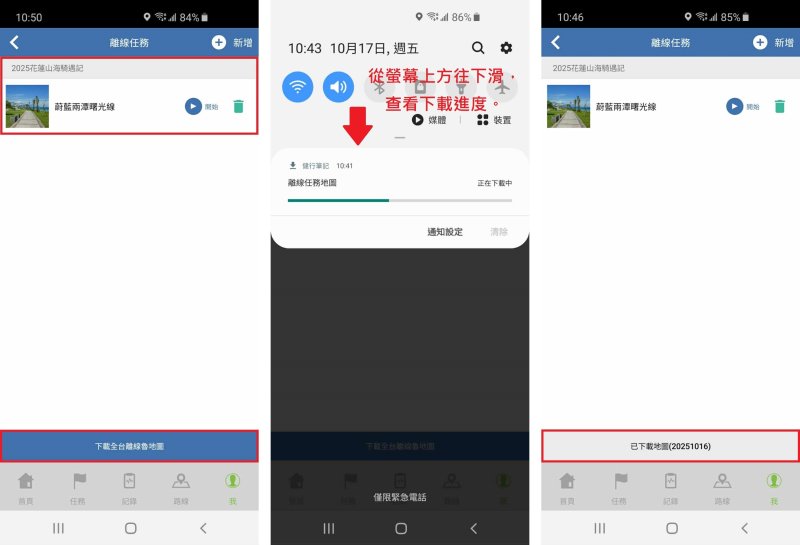
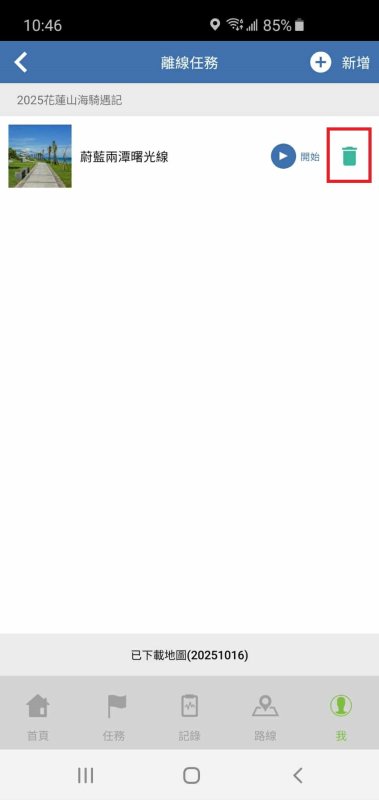
Important reminder: It’s recommended that Android users click “Start” only when there’s a good network signal. This ensures that the task is downloaded completely. If the phone displays “Download incomplete”, “Download failed”, or “Already downloaded/Downloading”, and you’re unable to click “Start” to proceed with the task, go to that offline task, click the delete button (the “Trash” icon), and delete it. Then, try downloading the task again from a location with a good network connection.
Step 4: Begin the task. |
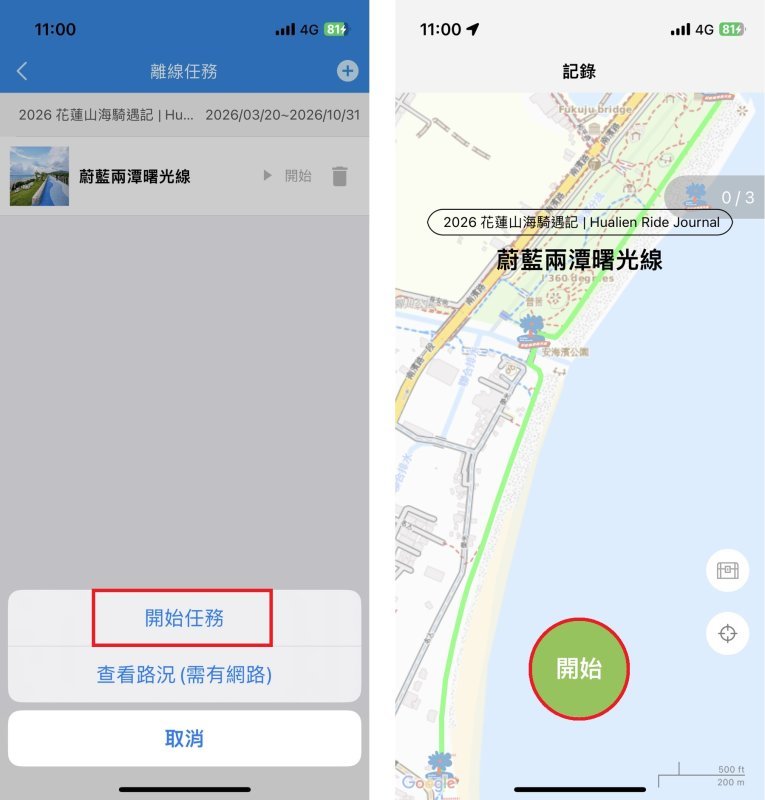
1.At the starting point of the trail, to begin the task, you can put your phone in flight mode. Since the offline tasks have already been downloaded, no internet connection is required. Make sure that your phone’s location permissions are set to “Always Allow” for the Hiking Notes app. If you only grant permission during the app’s usage period, you won’t be able to collect the virtual Little Stone Flower gems. After completing these steps, click “Start Task” to begin collecting the virtual Little Stone Flower gems!
2.Before starting, a reminder will be displayed regarding the records to be kept for reference by those who come after. Please simply select “I understand”.

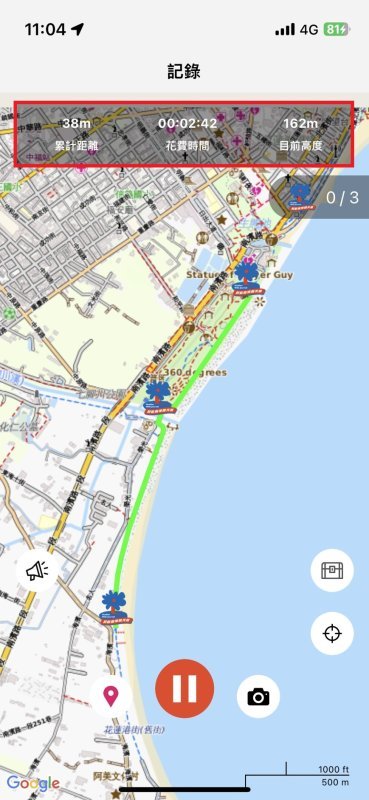
3.After starting the task, please check whether the screen displays the values for “Total Distance”, “Time Spent”, and “Current Height”. If these values are displayed, it means the positioning was successful. If not, please wait a moment or restart the task until the values appear. Only then can you proceed with the task.
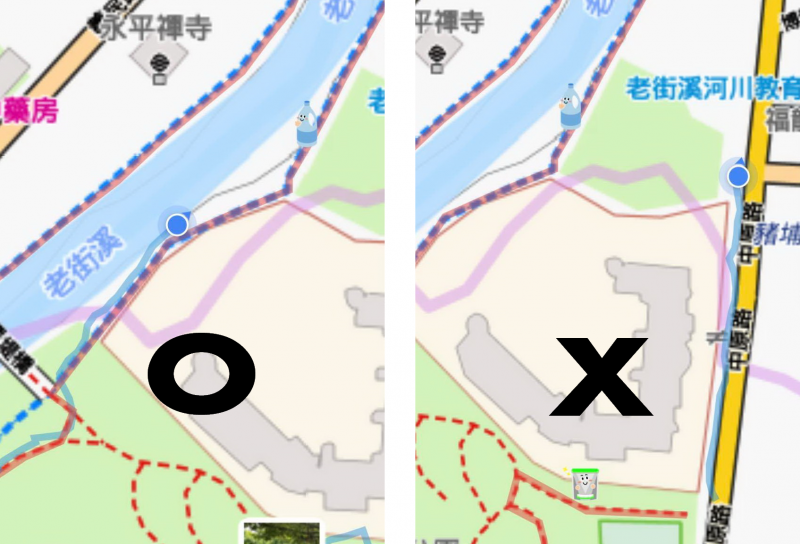
4. How can I tell if I’m on the correct path? If your position (the blue dot) appears on the GPX file of the route, it means you’re on the right path (as shown in the image below left). Otherwise, you’re not on the correct path (as shown in the image below right). This can also be determined from the GPX file itself. On iOS, the GPX file for the route is shown in light red, while your actual path is shown in light blue. On Android, the GPX file is shown in light green, and your path is shown in dark blue.
Step 5: Complete the task. |
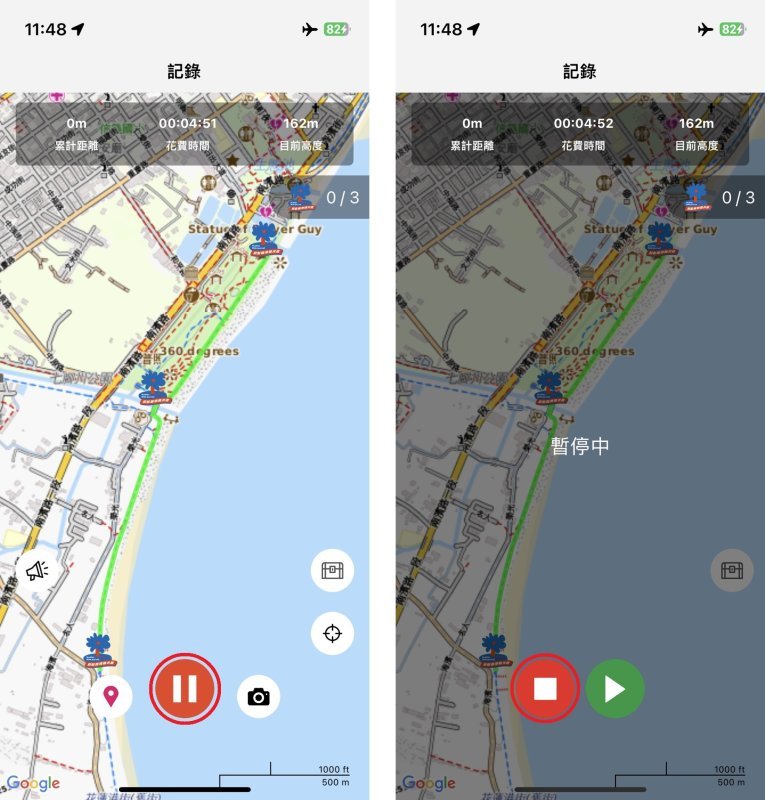
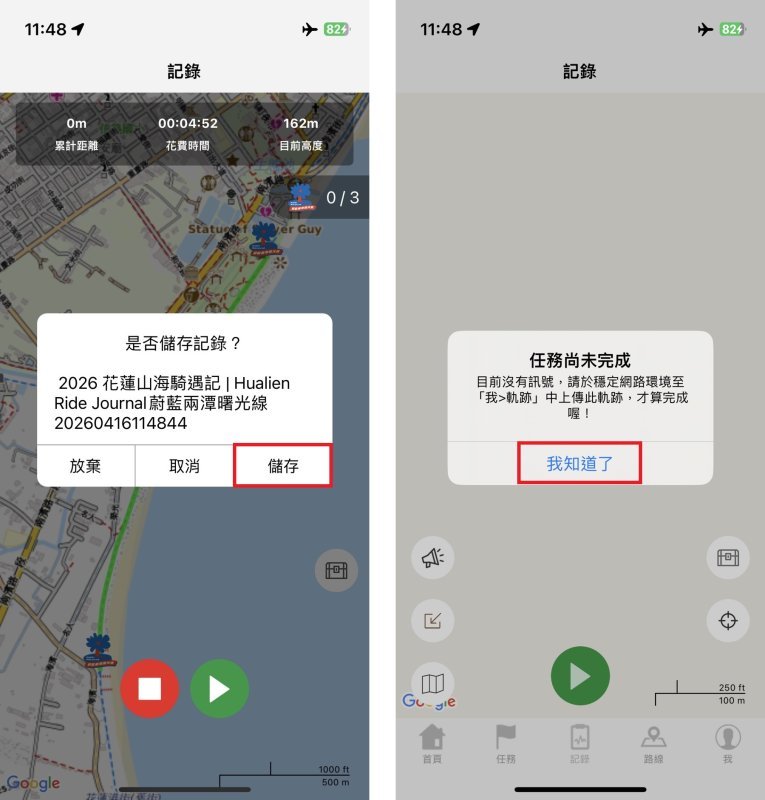
To end and save this mission, please press the red button twice (the pause button and the stop button).
Step 6: Upload the track in GPX format / Complete the task |
1.Upon completing the task and saving the records, if the phone has a stable internet connection, this step can be skipped. The system will automatically upload the track records.
2.Upon completing the task and saving the records, if your phone is in flight mode or has no network signal, please go to a place with a stable network connection. Once connected, go to “Me” > “My Track”. Then, click “Upload” for the records of your movements throughout the day. Only then will the virtual stone gems be properly counted in the statistics!
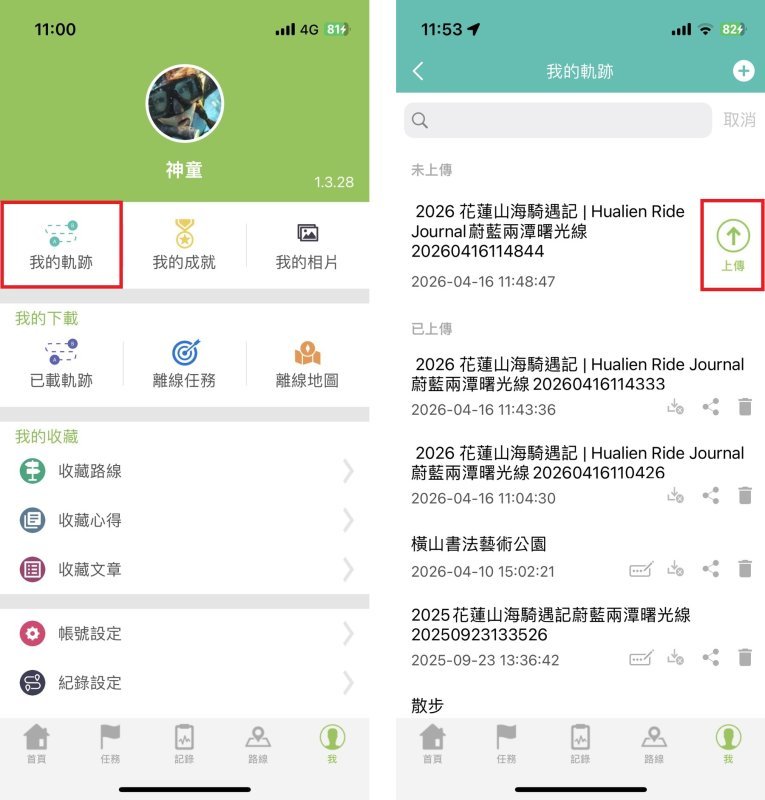
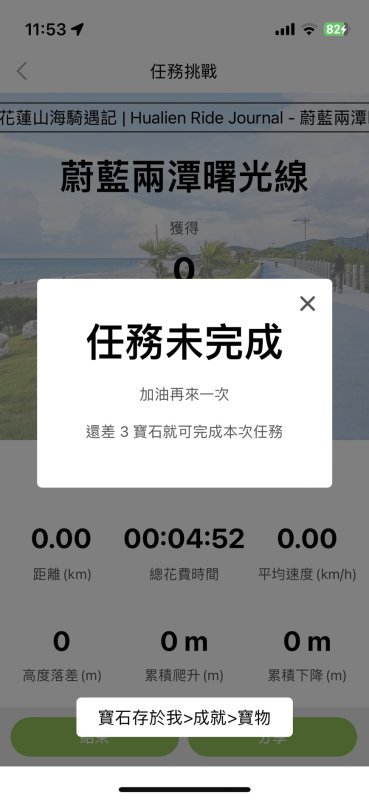
3.After successful uploading, if the task isn’t complete yet and some virtual Little Stone Flower gems are still missing, then the task isn’t finished. Next time, please collect all the virtual Little Stone Flower gems to complete the task! Once the task is completed, it will be displayed that you’ve successfully finished it and obtained all the virtual Little Stone Flower gems.
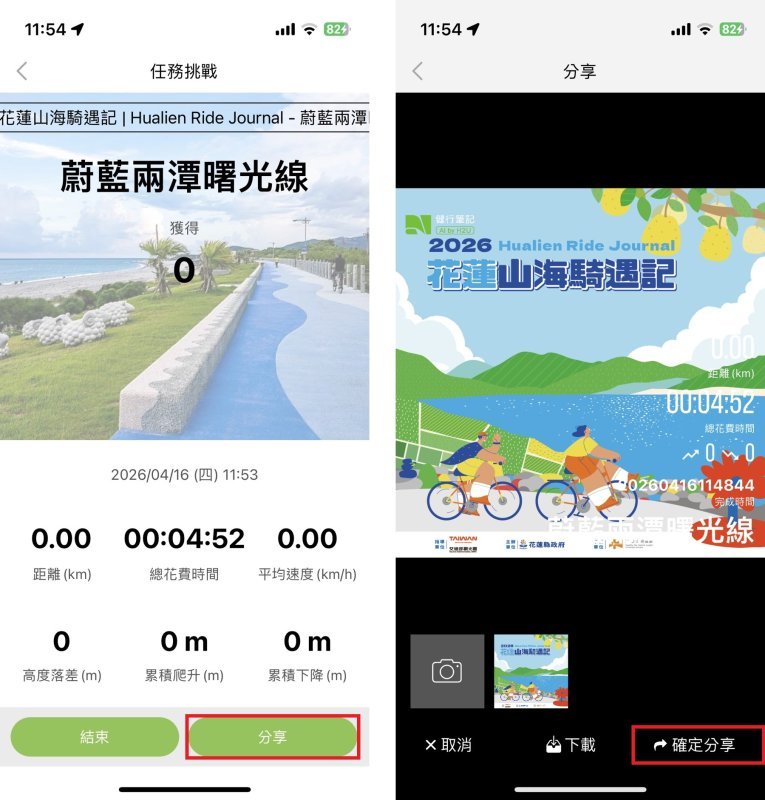
4. The hiking records from this challenge can be shared on social media platforms like FB and Line.
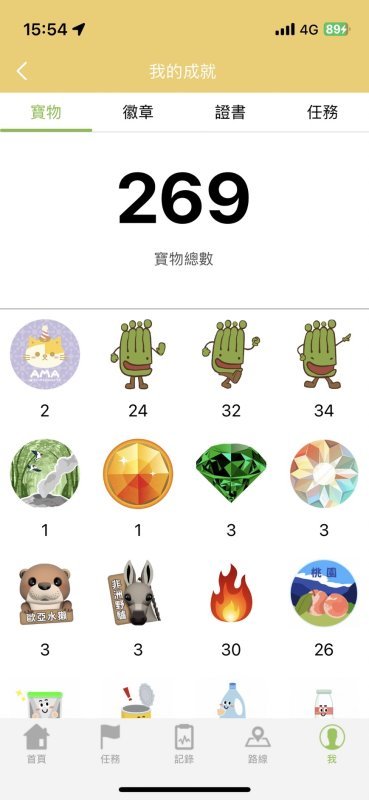
【Fun Fact】How can one find out their personal achievements? |
From “Me” to “Achievements”: View all your accomplishments. All the records completed using the app are here! This includes treasures, badges, certificates, and tasks.
▋ Contact customer service
What if, after completing the tasks according to the steps in “How to Play the Activity”, one still isn’t able to obtain the “gems”?
For inquiries regarding event information, please contact us through either of the following two methods:
Hiking Note Mailbox: [email protected]
2. Hiking Biji FB Fan Page: https://www.facebook.com/hikingbiji/
Event Hotline | (02) 2912 5566 #7329 | Flower Specialist | Service Hours | 9:00 a.m. to 6:00 p.m.
4. Search to add as a LINE@ friend: @996nfato