
Mission Description
Mission 1: The Grand Collection
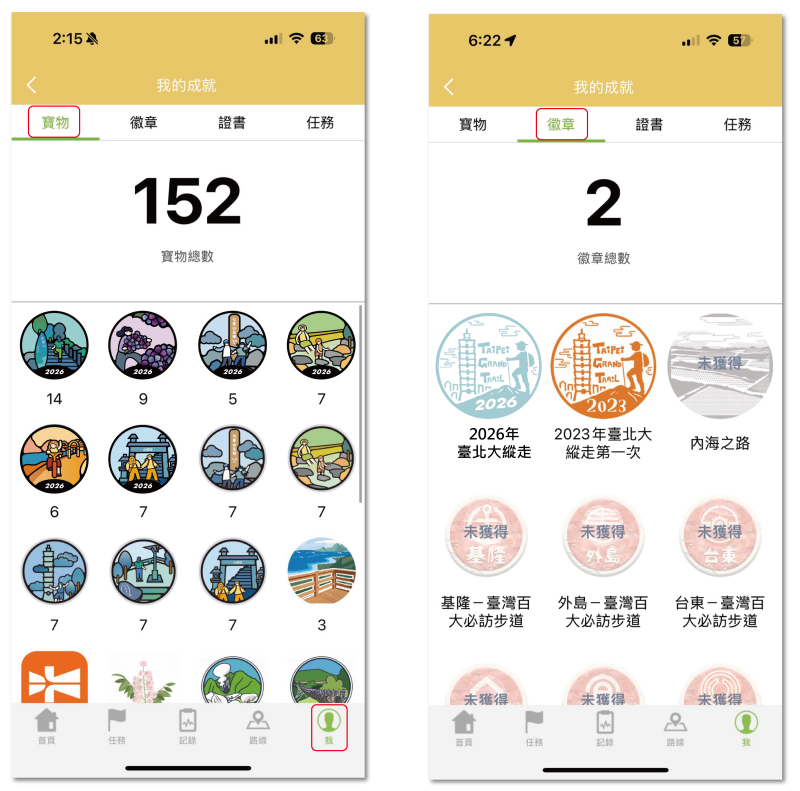
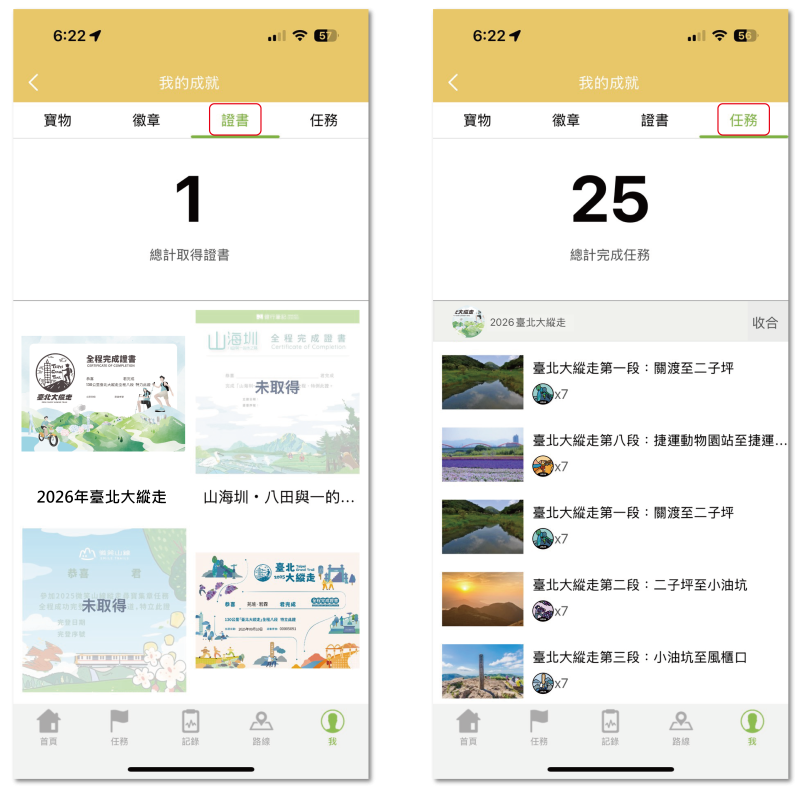
The goal is to collect virtual "Gems" representing local landmarks along the 130km Taipei Grand Trail. The trail is divided into 8 sections. Collect all 7 gems in each section (56 gems in total) to complete Mission 1. Upon completion, you will receive an Online Achievement Badge and an E-Certificate, and you’ll be eligible to redeem a physical official certificate and prizes!
Mission 2: Monthly Challenge
Hike designated trails during specific months to accumulate gems (max 7 gems per day). Check your standing on the Gem Leaderboard in the app. At the end of each month, the top 100 hikers will win a limited-edition "Gem-themed Coaster" !
Step 1: Download & Location Settings |
Android: bit.ly/2KLrdp3
iOS: apple.co/2KLs3Cd

⚠️ Important: You must use the same login method (Facebook or LINE). Switching accounts will result in separate progress that cannot be merged.
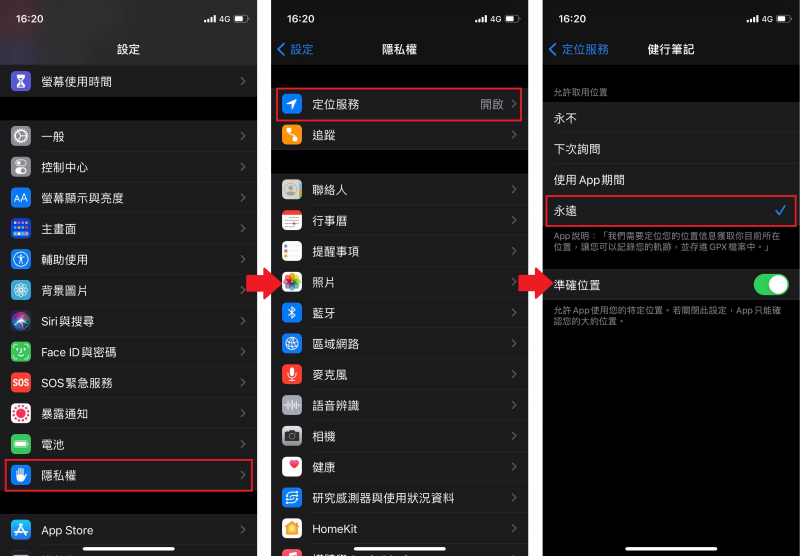
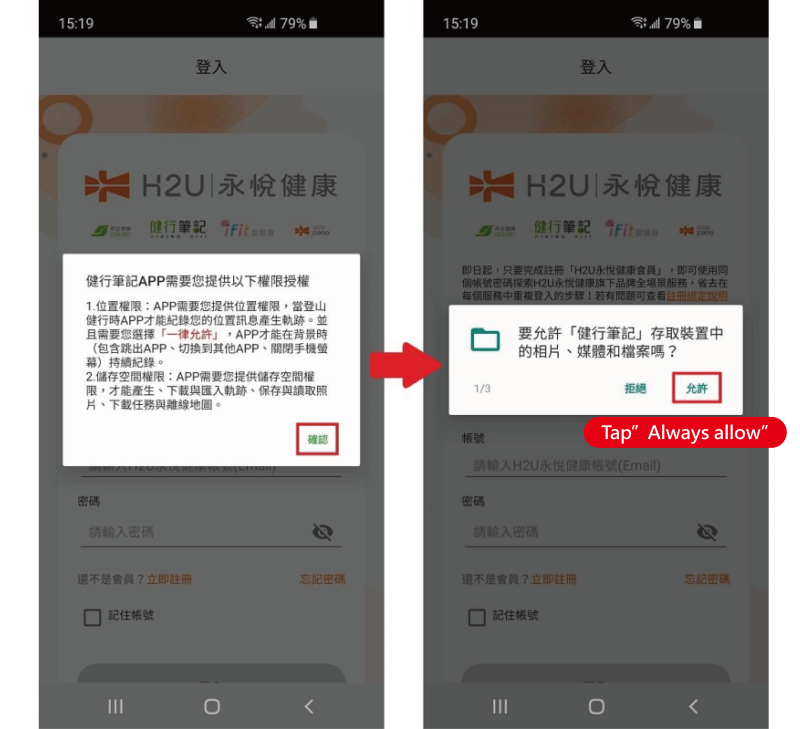
Location Permissions (Crucial):
iOS: Set to "Always Allow".
Android: Set to "Allow all the time" (or "On" if the specific option is unavailable).
 ⚠️Power Saving: Do NOT turn on Battery Saver mode, as it interferes with GPS and gem tracking. Bringing a power bank is highly recommended.
Step 2: Registration & Login |
Please ensure you have a stable internet connection for this step
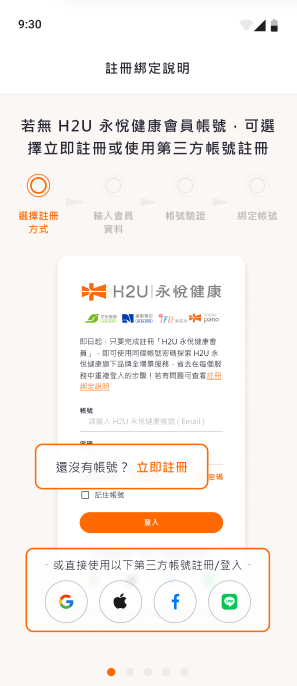
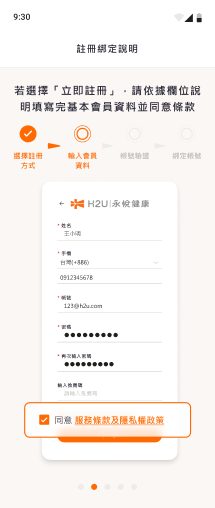
| (1) Select Login Method: Choose Facebook or LINE (stick to one!). | (2)Fill in Profile: Enter your member information. |
 |  |
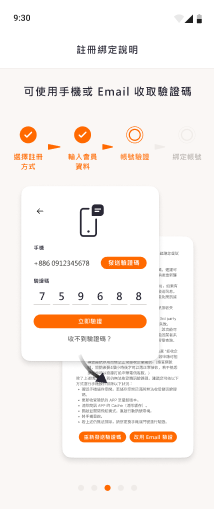
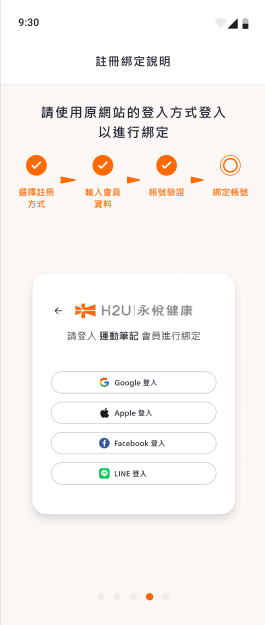
| (3)SMS Verification: Verify your phone number. | (4)Account Binding: Link your account to Hiking Biji. |
 |  |
(5)Success: You are ready to go! | |
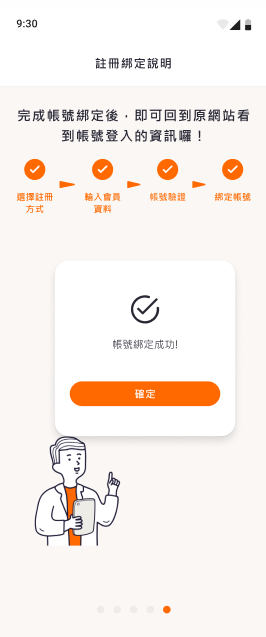 |
Step 3: Join the 2026 Taipei Grand Trail |
Tap "Missions" at the bottom of the home screen and select "2026 Taipei Grand Trail".
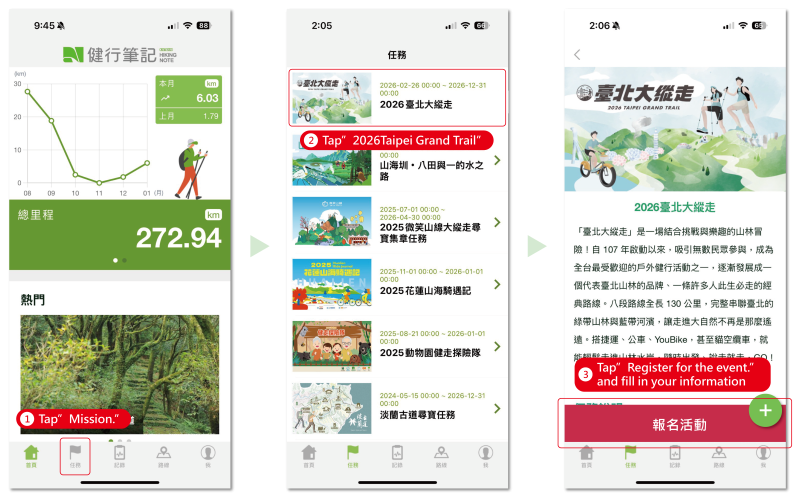
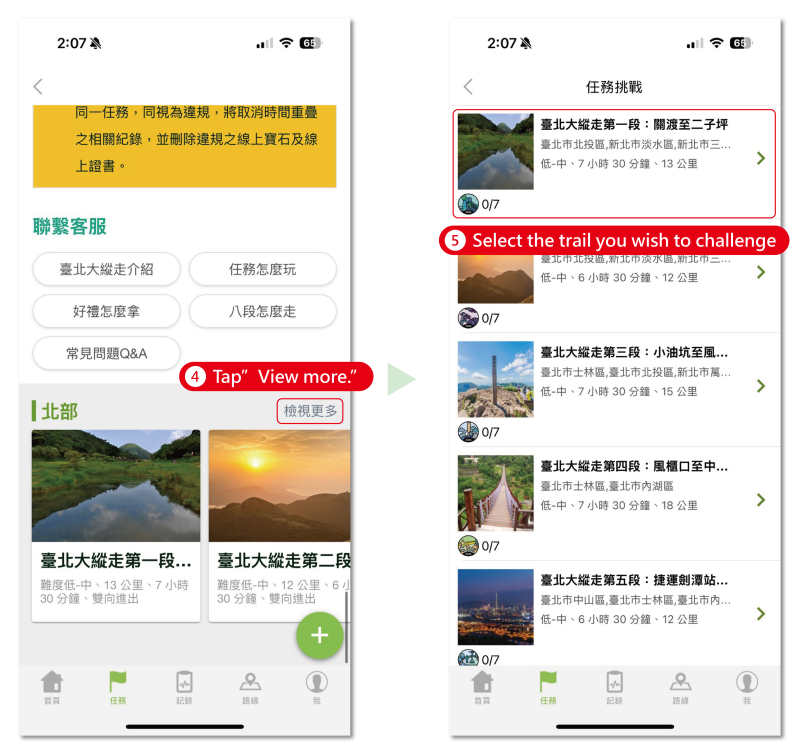
Tap "View More" to pick a trail (e.g., Section 1).
Tap "Download Offline Mission". This saves the map and GPX route to your phone so you can navigate without internet or signal, saving battery life.
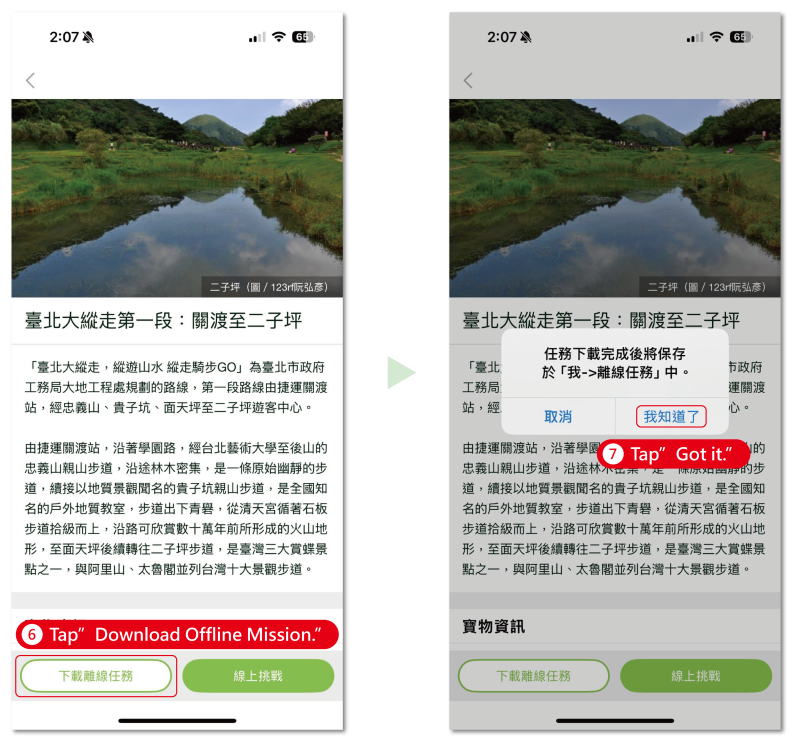
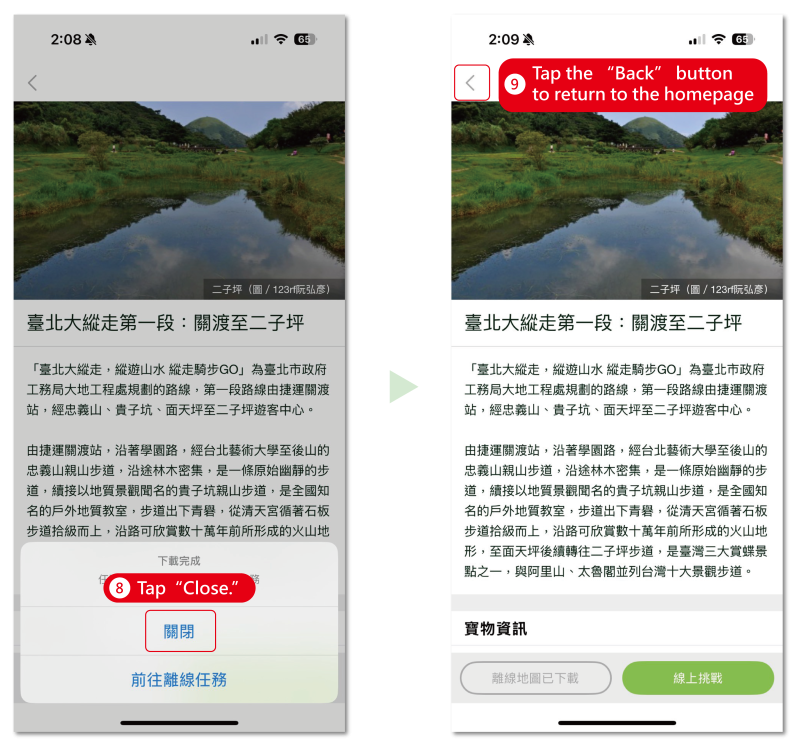
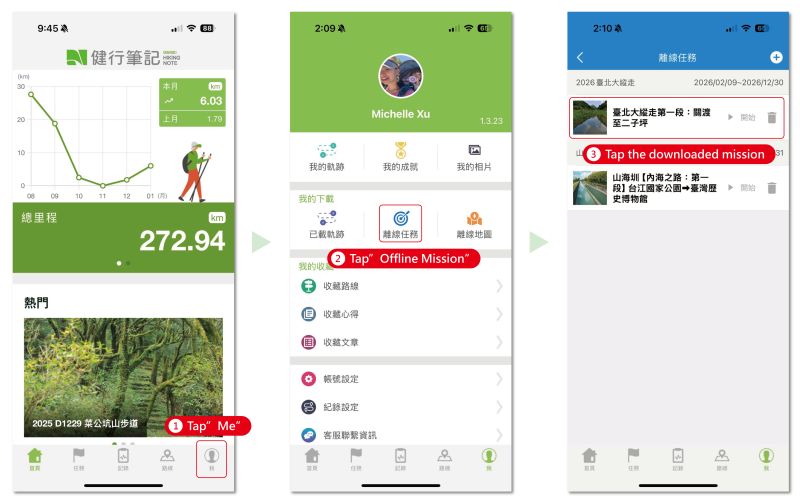
Go to "Me" > "Offline Missions" to find your downloaded trail.
Step 4: Final Prep |
iOS: Downloads everything automatically.
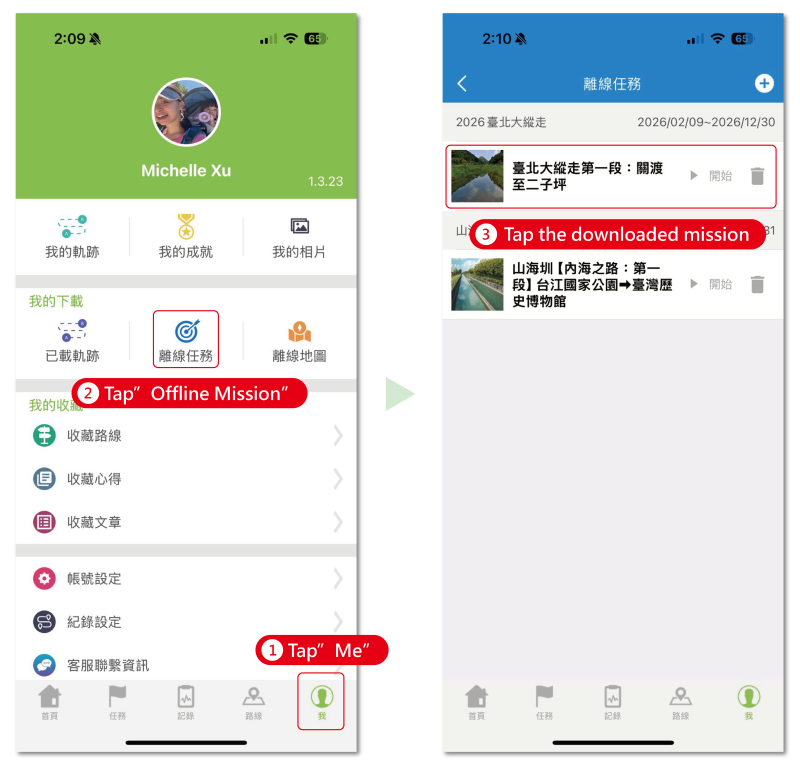
Android: If you haven't already, tap "Download Taiwan Rudy Map" at the bottom of the Offline Missions page.
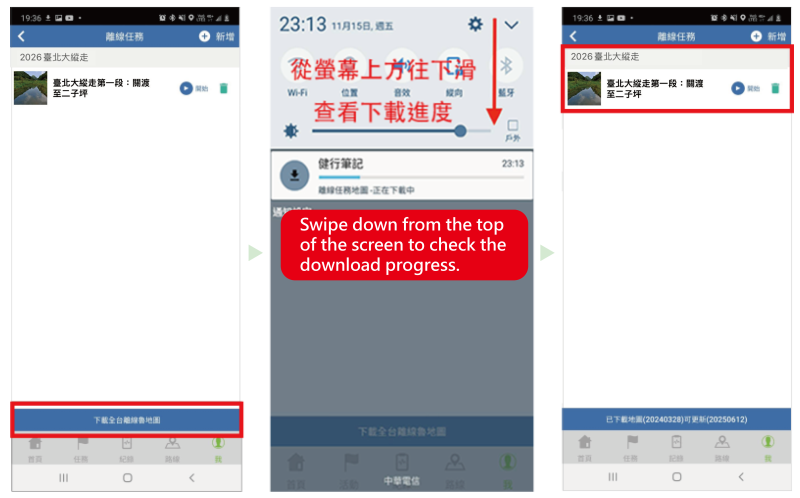
For Android users, even after downloading the mission GPX, there is one additional step: downloading the Taiwan Rudy Map (Offline Map).
|
⚠️ Important Reminder
For Android users, it is highly recommended to tap "Start" while you still have a strong internet connection to ensure the mission has downloaded completely.
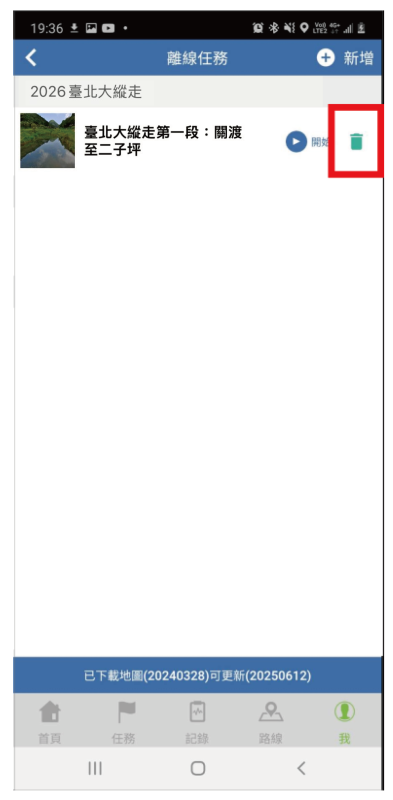
If the screen displays "Incomplete Download," "Download Failed," or stays stuck on "Downloaded/Downloading" and won't let you press "Start," please follow these steps:
Go to the specific Offline Mission.
Tap the Delete icon (the "trash can" icon).
Once deleted, re-download the offline mission in an area with a stable internet connection.
Step 5: Start the Mission |
At the trailhead, you can switch to Airplane Mode (ensure GPS is still on).
Tap "Start Mission".
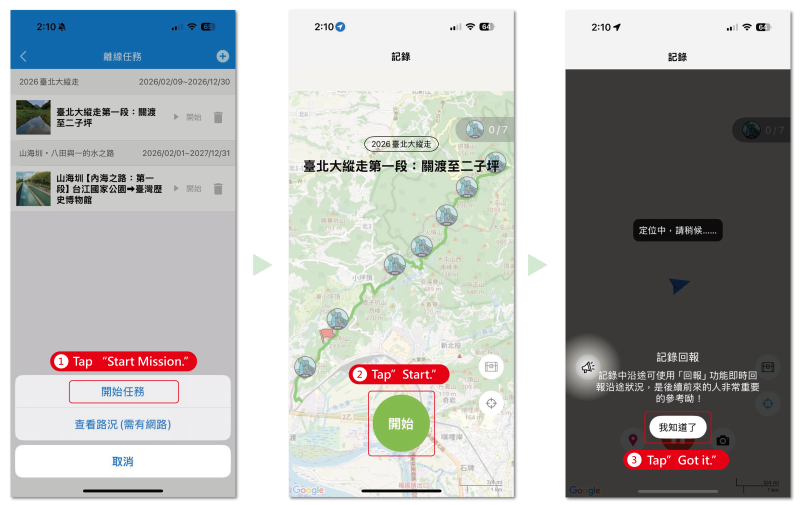
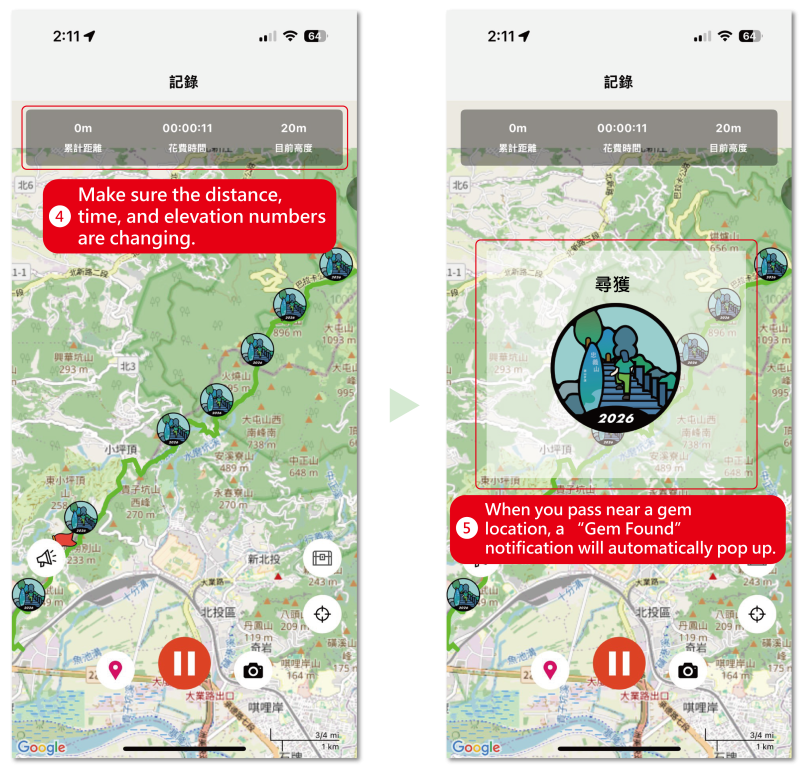
Check Data: Ensure "Distance," "Time," and "Altitude" are updating. If not, wait a moment or restart the mission until data appears.
Catching Gems: Follow the GPX path. When you are near a gem, your phone will vibrate and play a sound to notify you it has been collected.
Step 6: End & Save |
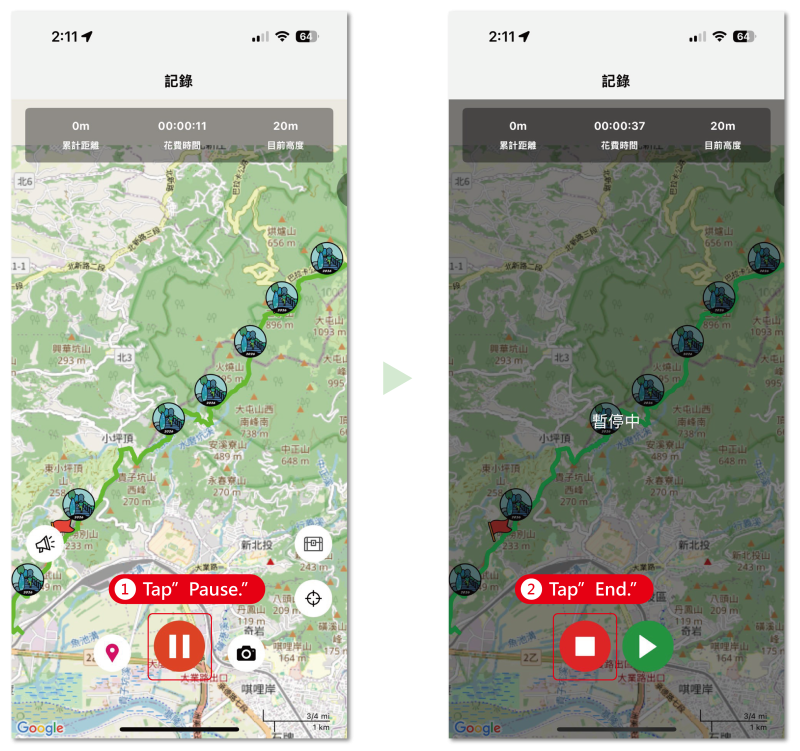
To finish, press the Red Button twice (Pause, then Stop).
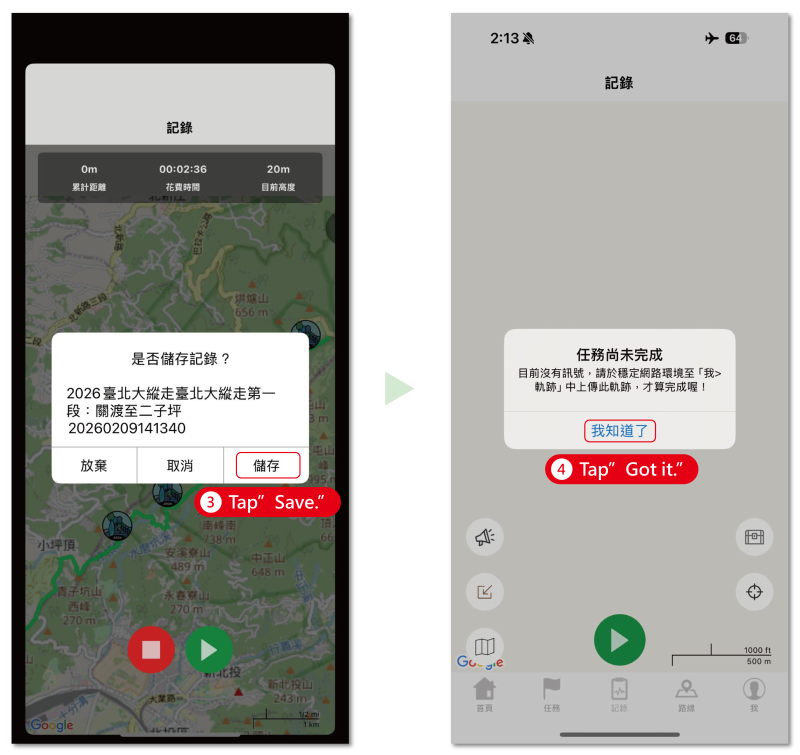
Step 7: Upload Progress |
With Signal: The app uploads automatically.
No Signal: Once back in range, go to "Me" > "My Tracks" and tap "Upload" manually. Your gems will only be counted after the upload is successful.
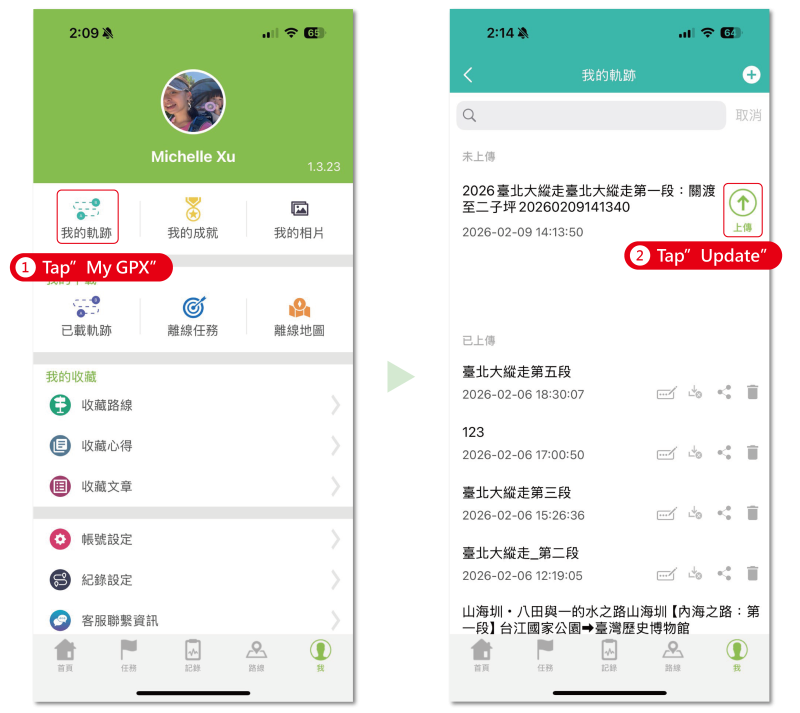
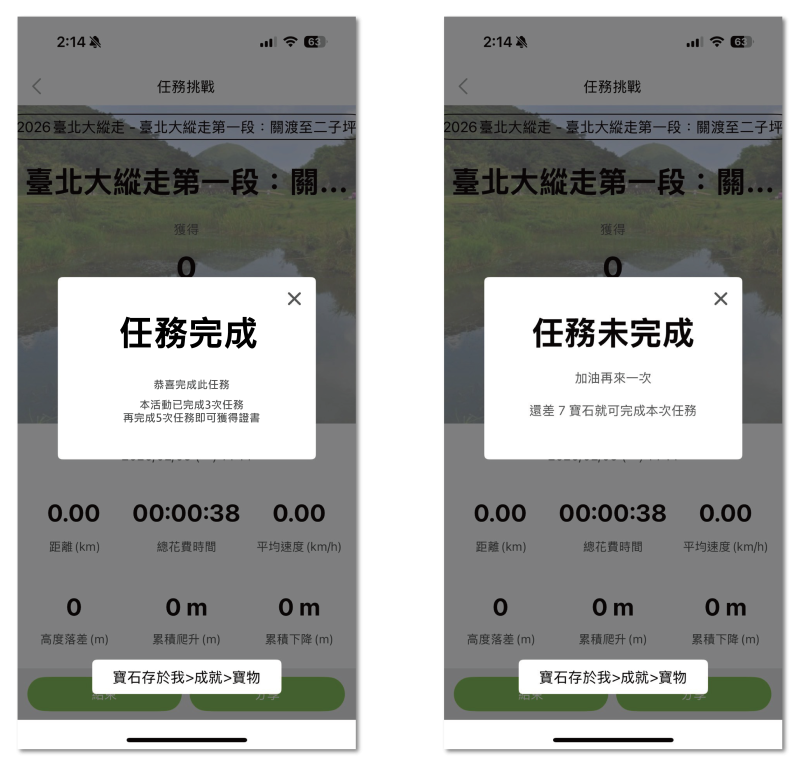
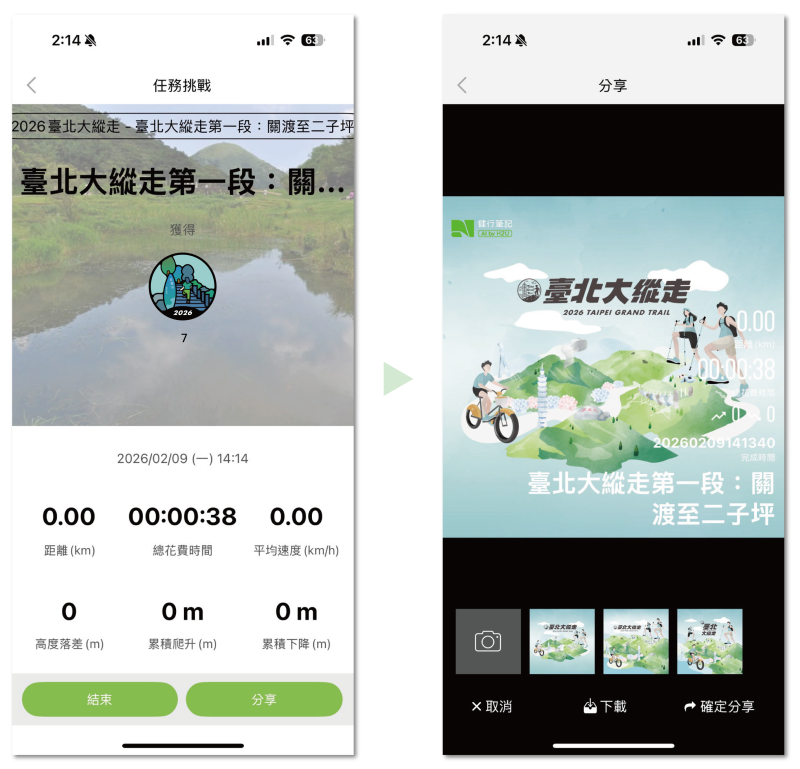
⚠️Important Reminders
One Mission at a Time: The app only supports one active mission. If routes overlap, you must hike them separately to get gems for both.
Don't Forget to Save: Achievement only accumulates if you save and upload your records.
Refresh Offline Data: If it has been more than a month since your last record, please delete and re-download the Offline Mission under "Me" > "Offline Missions" to ensure the data is up to date. (Don't worry, your collected gems are saved to your account!)
Earn Online Achievement Badge & Completion Certificate |
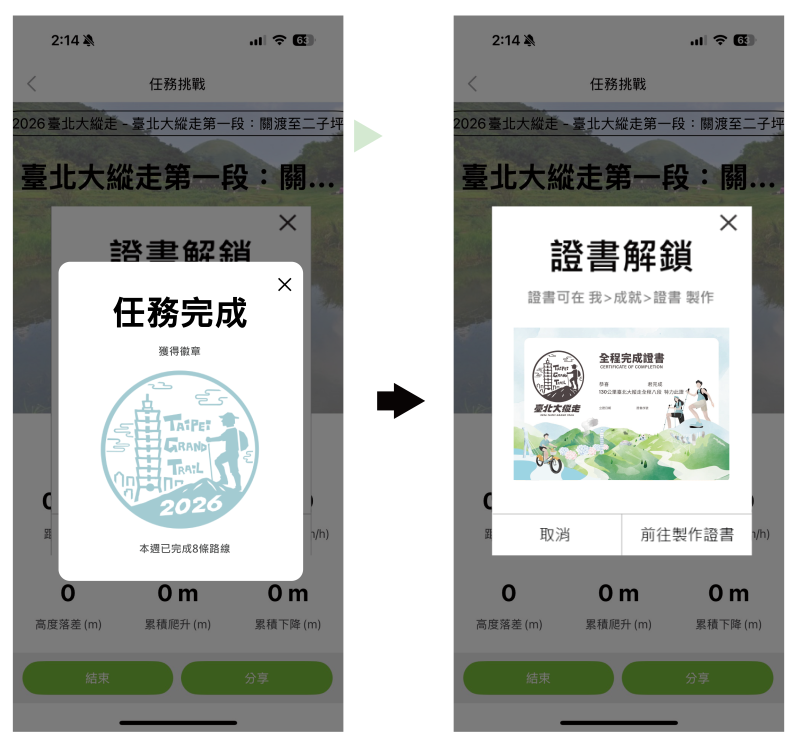
View Achievements |
Go to "Me" > "Achievements" to see your Treasures, Badges, Certificates, and Missions.