
Download & Set Up the App |
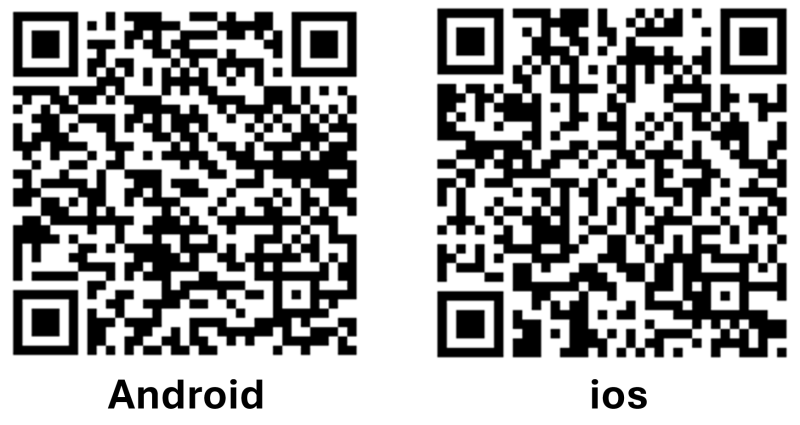
Download the Hiking Note App
Android Download: bit.ly/2KLrdp3
iOS Download: apple.co/2KLs3Cd
⚠️Important Reminder #1: Location Settings
Please allow the Hiking Note app to always access your phone's location:
On iOS, select "Always Allow".
On Android, select "Allow all the time".
This setting is crucial for the app to successfully detect and collect the virtual gems. Due to the variety of Android models, the wording for this setting may differ. If you don't see an "Allow all the time" option, please ensure your location services are turned "On" for the app.
Android Location Settings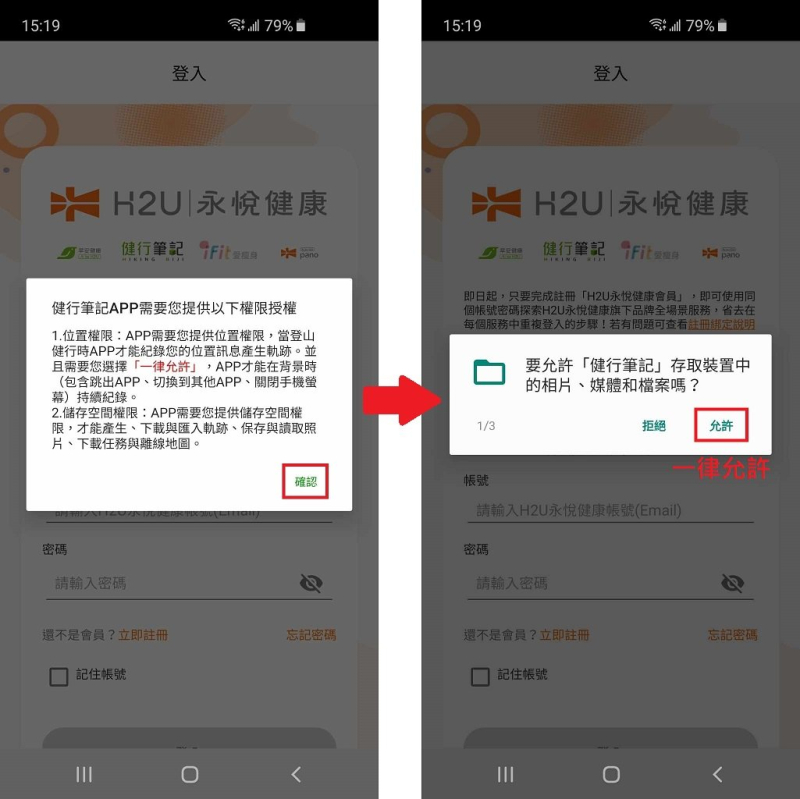
iOS Location Settings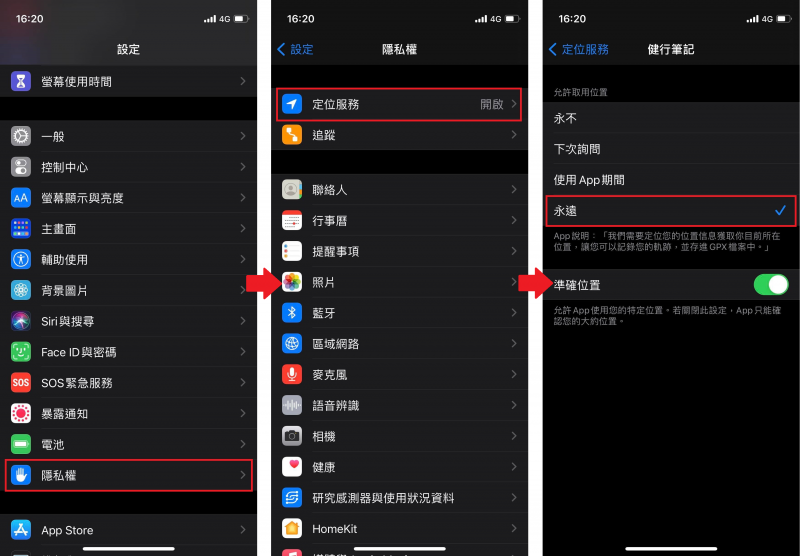
⚠️Important Reminder #2: Power-Saving Mode
While using the app, do not enable power-saving mode, as it may interfere with GPS tracking and prevent you from collecting gems. We highly recommend bringing a portable power bank to keep your phone charged.
⚠️Important Reminder #3: Use a Consistent Login Method
Logging into the Hiking Note app with Facebook and LINE are treated as two separate accounts by our system.
If you want to accumulate all your mission progress under a single account, you must consistently use the same login method (choose either Facebook or LINE and stick with it). Progress from different accounts cannot be merged or combined.
(For example: If you log in with Facebook, always use Facebook. If you later log in with LINE, the progress from your Facebook account will not be transferred over.)
Registration |
To simplify the login process for our users, all websites under the H2U network have switched to the H2U Single Sign-On (SSO) system as of February 27, 2024.
Hiking Note is now part of the H2U network. You must complete the new registration and account binding process to log in and continue using the service. Thank you for your cooperation.
🟦Registration Process for New Members
1. In the Hiking Note app, tap "Log In"!

2. Choose your preferred login method!
Alternatively, to sign up with an email and password, tap "Sign Up Now"!
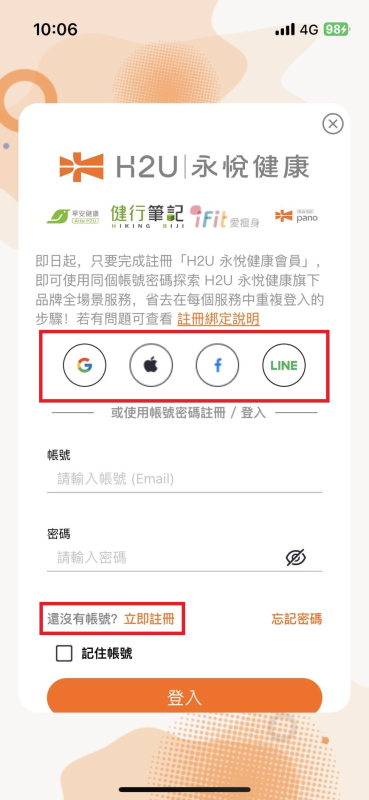
3. Enter your name and phone number, then tap "Next"!

4. Verify your phone number!
If you cannot receive the SMS verification code, please choose email verification instead.
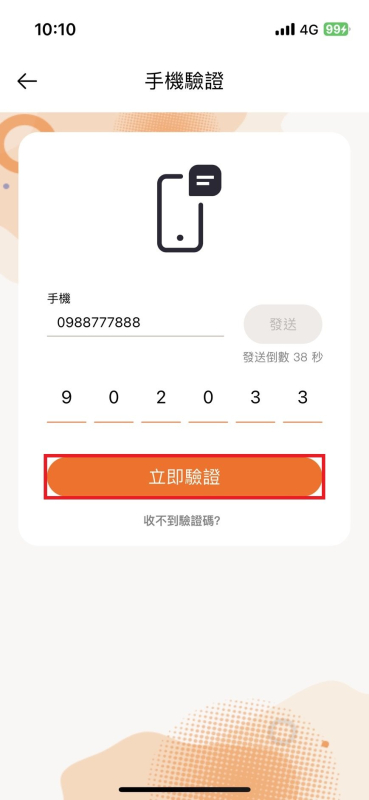
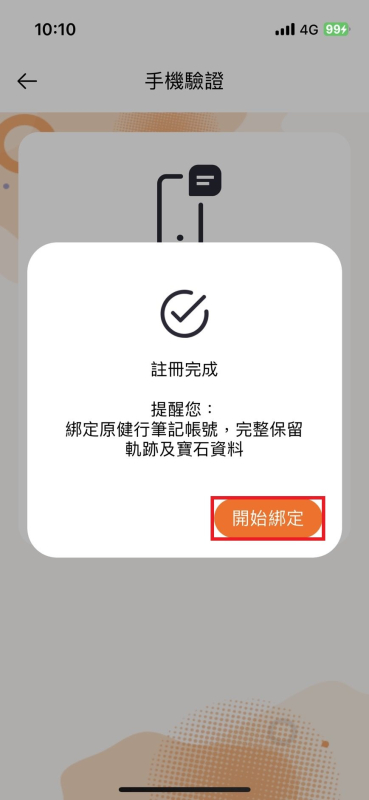
5. Registration Complete!
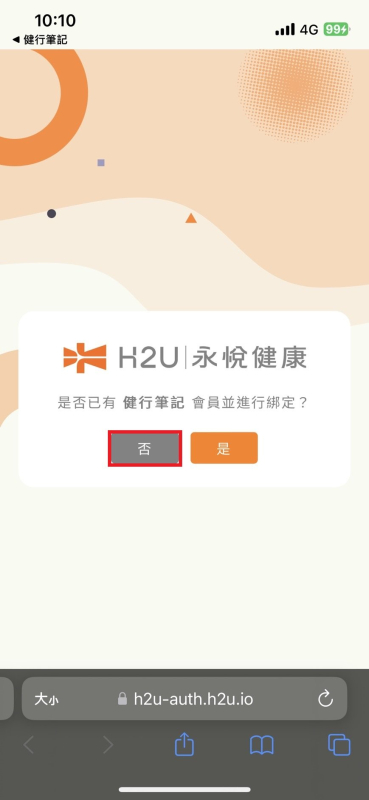
6. When asked [Do you already have a Hikingbook account and wish to bind it?], select "No"!
As a new member, you do not need to bind an old account.
8. After registration is complete, you can find your Member ID in the app under "Me" > "Account Settings".
Please remember your Member ID and login method. All your future activity records will be associated with this ID. Thank you.
🟦Registration and Account Binding for Existing Members
First, please have the following information ready:
Your original Hiking Note Member ID: You can find this in the app under "Me" > "Account Settings".
Your original login method (e.g., Google, LINE, etc.).
When prompted, you will need to select "Yes" to bind your existing account and choose your original login method.
⚠️If you don't remember your login method, please provide the following information so we can assist you.
Member ID: You can find this in the app under "Me" > "Account Settings".
Phone Number
Contact Customer Support
Hiking Note Email: hikingnote@gmail.com
Hiking Note Facebook Page: https://www.facebook.com/hikingbiji/
1. In the Hiking Note app, tap "Log In"!

2. Select the same login method you originally used for your Hiking Note account!
Example: If you previously used Google to log in, select Google again. If you used LINE, select LINE.
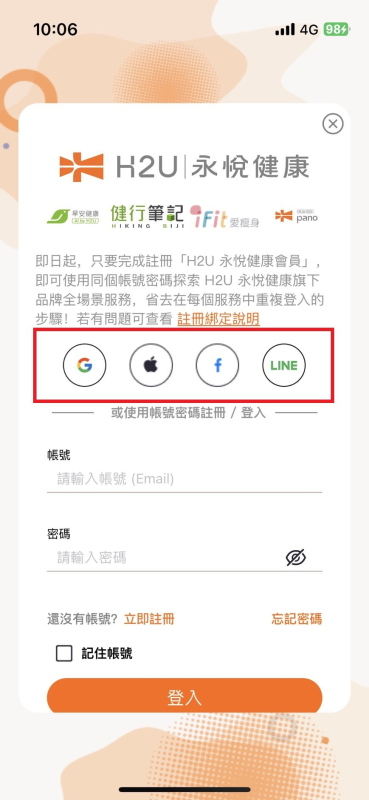
3. Enter your name and phone number, then tap "Next"!

4. Verify your phone number!
If you cannot receive the SMS verification code, please choose email verification instead.
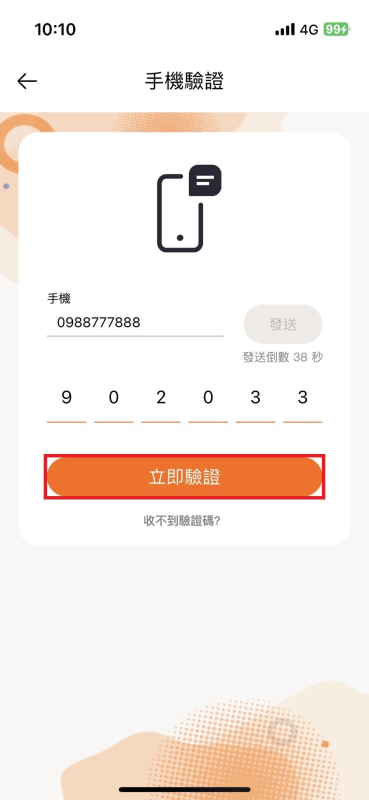
5. Registration Complete!
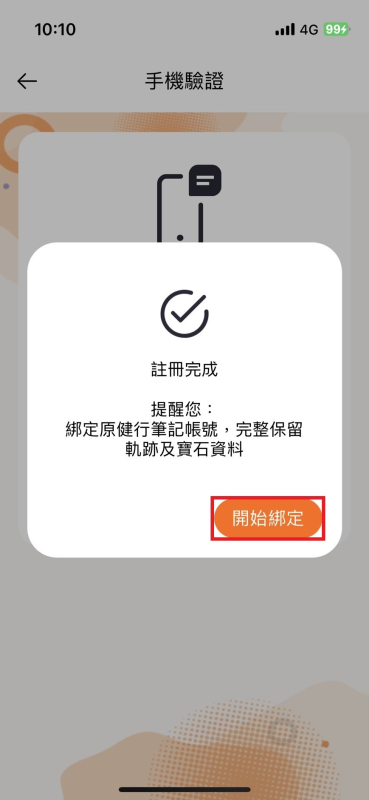
6. When asked [Do you already have a Hiking Note account and wish to bind it?], select "Yes"!
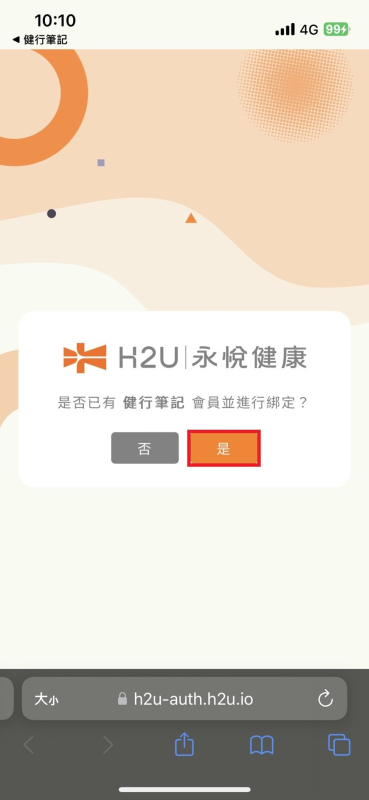
7. Next, select the same login method you originally used for Hiking Note to bind your account. Thank you!
Example: If you previously used Google to log in, select Google. If you used LINE, select LINE.
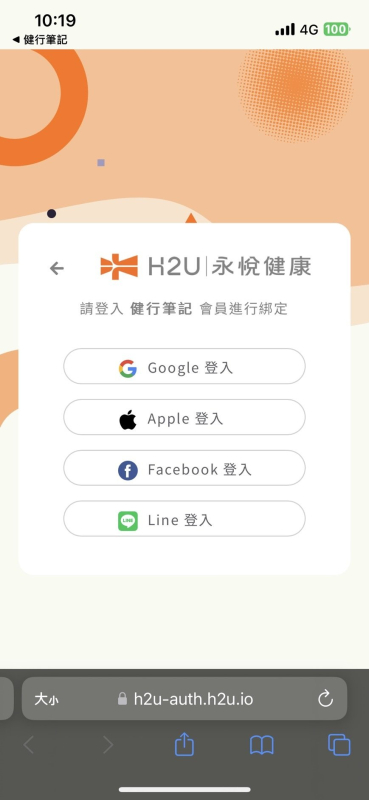
8. After binding is complete, please go to "Me" > "Account Settings" to confirm that the Member ID matches your original Hiking Note Member ID.
Please remember this ID and your login method for all future use. Thank you.
For detailed instructions on registration and binding:
https://h2u-auth.h2u.io/Instructions?client_id=BijiHiking
How to Play: Step-by-Step Guide |
Step 1: Find and Sign Up for the Event
On the app's home screen, tap "Missions" at the bottom, then select the "2025 Hualien Ride Journal" mission. On the event's main page, tap "Sign Up for Event" and complete the registration.

After viewing the event description, scroll down and tap "View More" to pick a route you want to challenge. For this example, we will select the "Azure Twin Lakes Dawn Route."
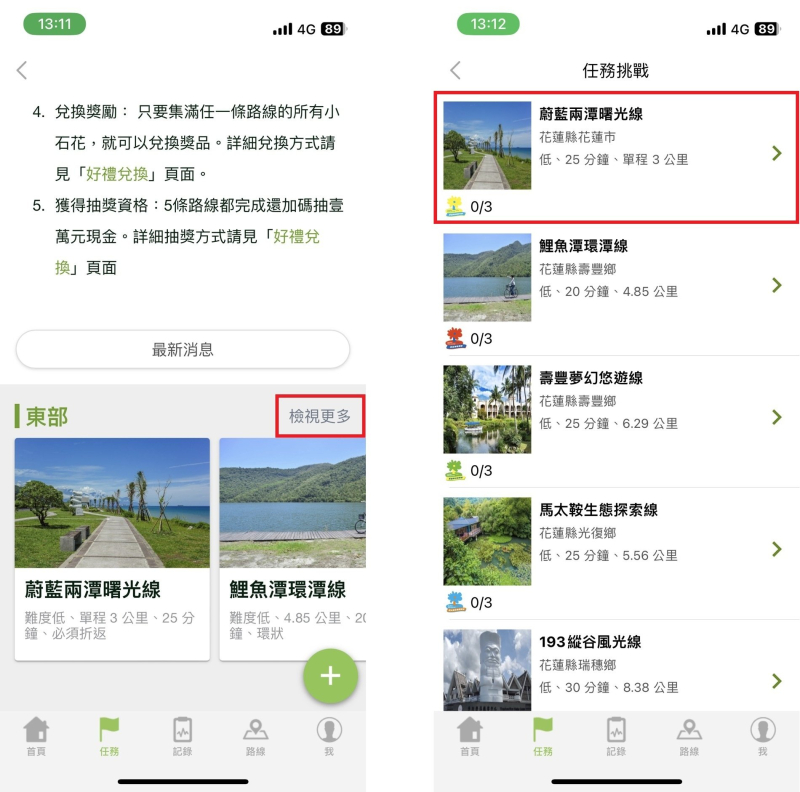
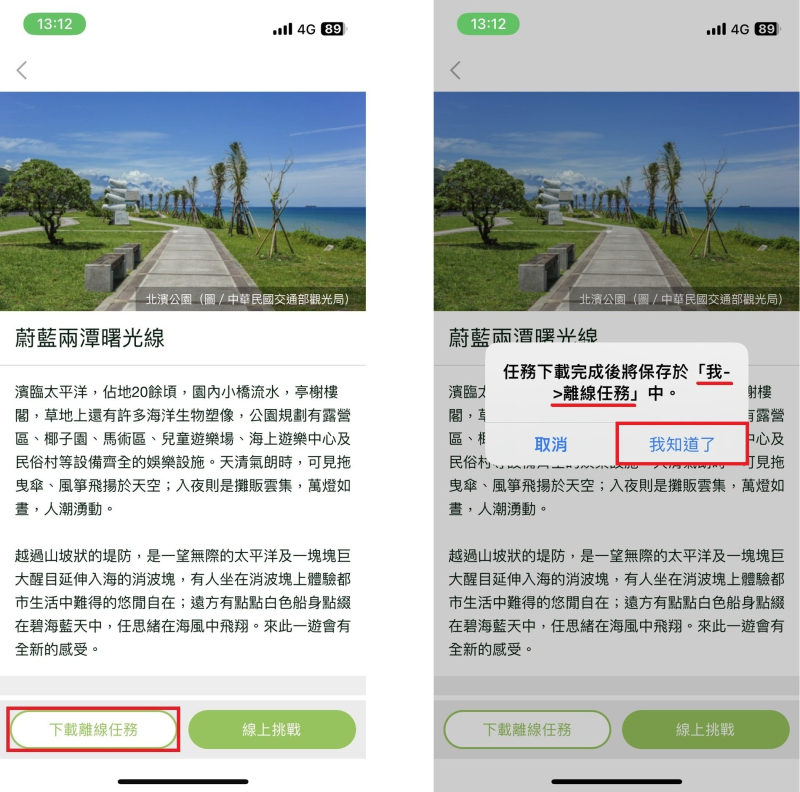
On the route information screen, scroll down and make sure to tap "Download Offline Mission." This saves the map and route data to your app, allowing you to complete the mission without an internet connection. This saves battery and prevents issues with poor network signal in remote areas.
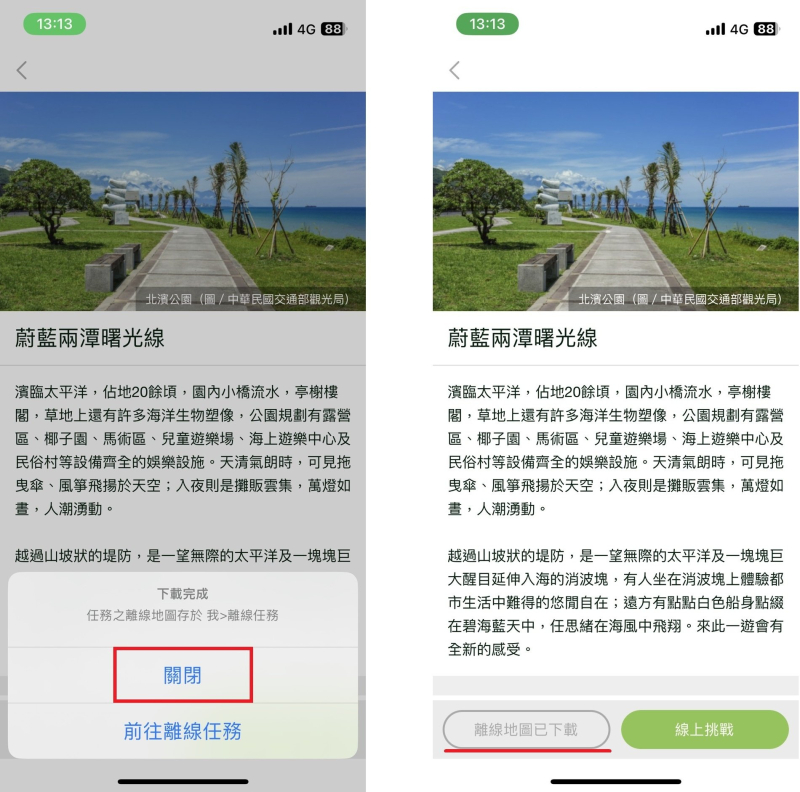
Once the download is complete, tap the back arrow (<) to return. Then, navigate to "Me" > "Offline Missions" on the bottom menu to find the mission you just downloaded.
Step 2: Locate the Downloaded Mission
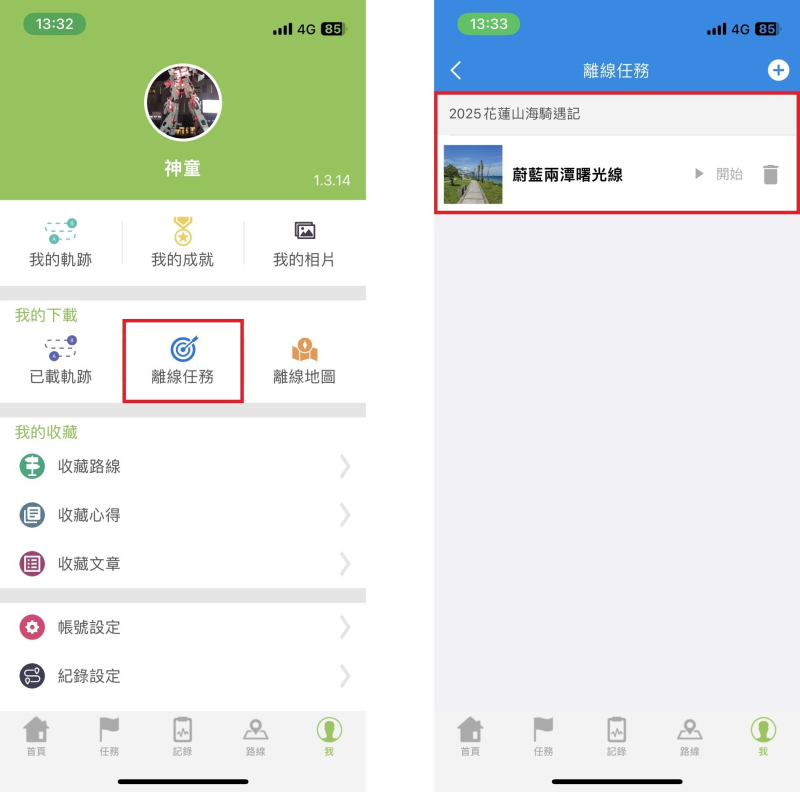
After returning to the main screen, tap "Me" on the bottom menu, then go to "Offline Missions." You will find the route you just downloaded (e.g., "Azure Twin Lakes Dawn Route").
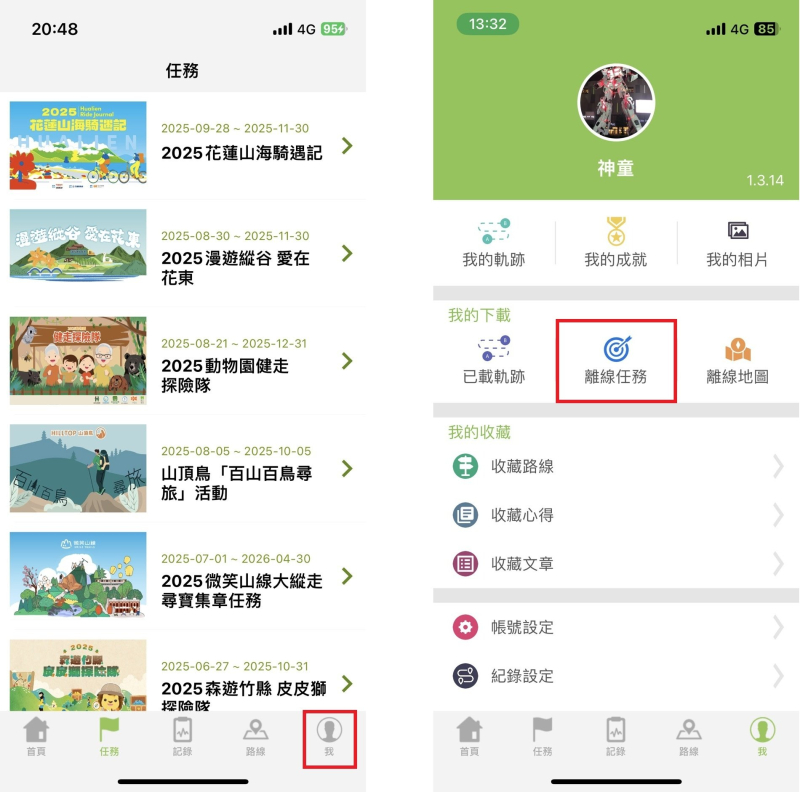
For iOS users: The app downloads both the route's GPX file and the offline map simultaneously. You are ready to start the mission!
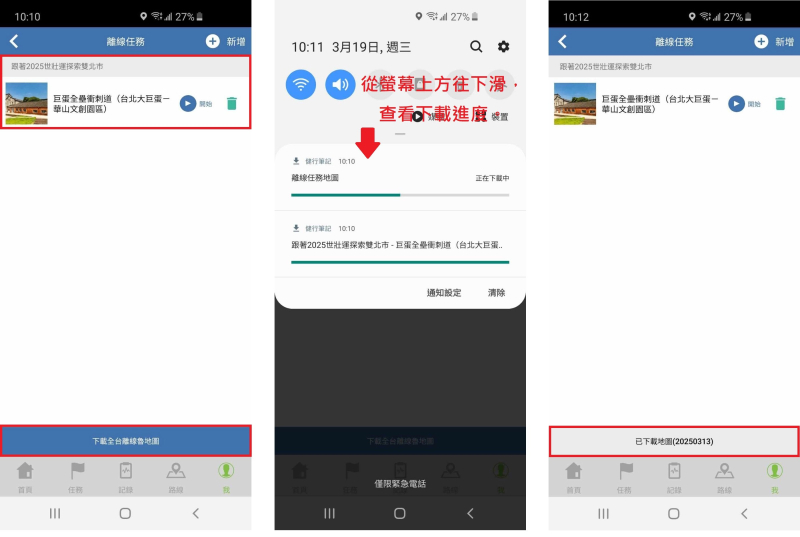
For Android users: After downloading the mission's GPX file, there is one extra step. If you haven't done so before, you must download the offline base map. Tap "Download Offline Rudymap (Taiwan)" at the bottom of the Offline Missions screen. You can swipe down from the top of your screen to check the download progress. If you have already downloaded the map from a previous mission, you don't need to do it again (though you can update it when a new version is available).
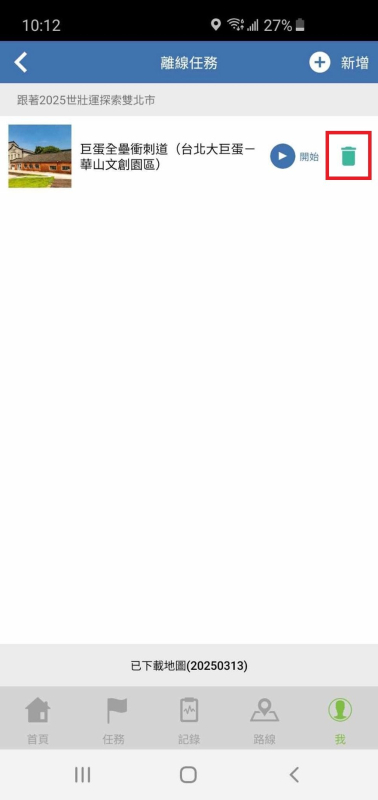
⚠️Important Reminder for Android: We recommend tapping "Start" while you still have a good internet connection to confirm the download was successful. If you see an error like "Download incomplete," "Download failed," or if the "Start" button is unresponsive, please delete the mission by tapping the trash can icon, return to a location with a strong network signal, and download the offline mission again.
Step 3: Start the Mission
When you arrive at the starting point of the route, you can switch your phone to Airplane Mode since the offline mission does not require an internet connection. Just ensure your phone's location permission for the Hiking Note app is set to "Allow all the time" / "Always Allow." If it's set to "While Using the App," you may not be able to collect the virtual gems correctly. Once ready, tap "Start Mission" to begin collecting gems!
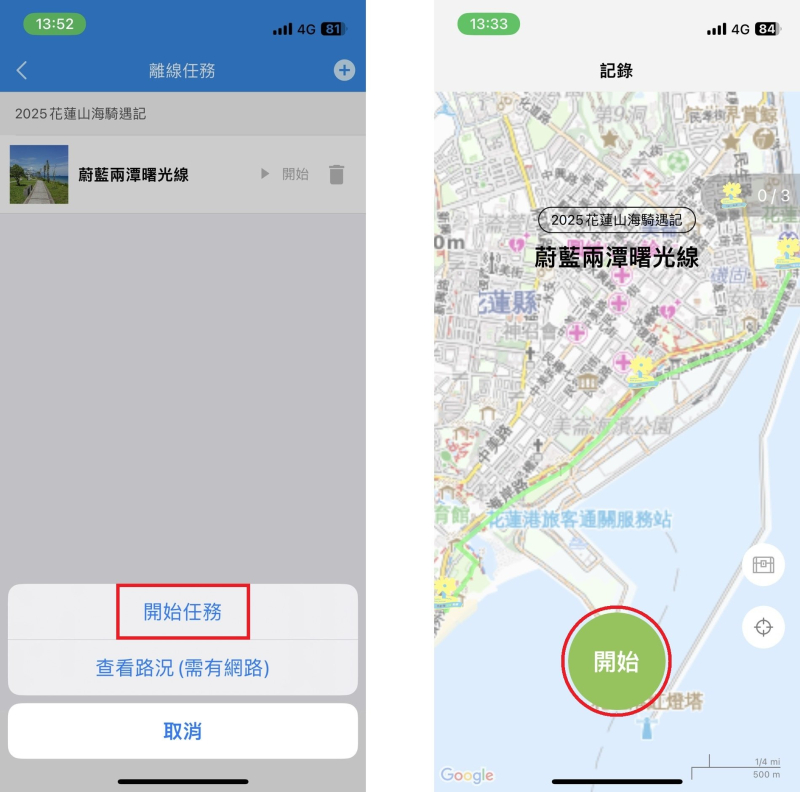
A pop-up will appear regarding trail condition reports. Tap "I Understand" to proceed.

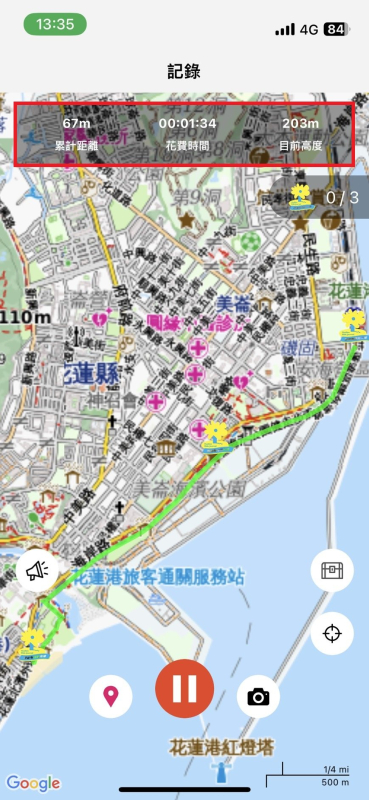
After tapping "Start Mission," check if the screen displays data for 'Distance,' 'Time,' and 'Current Altitude.' If these numbers appear, your GPS is working. If not, please wait a moment or restart the mission until the data appears before you start moving.
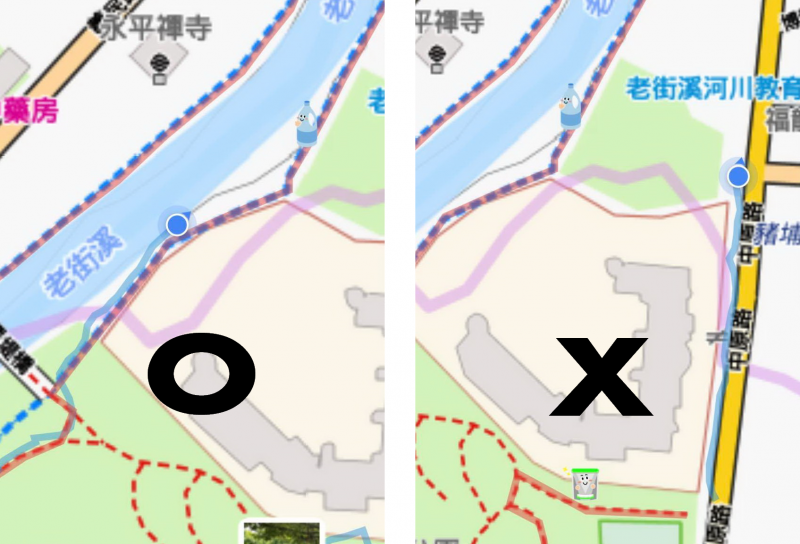
How to tell if you're on the right path: You are on the correct route when your location (the blue dot) is on the GPX track line (left image). If the blue dot is off the line, you have gone the wrong way (right image).
iOS: The route's GPX track is light red; your recorded path is light blue.
Android: The route's GPX track is light green; your recorded path is dark blue.
Step 4: End the Mission
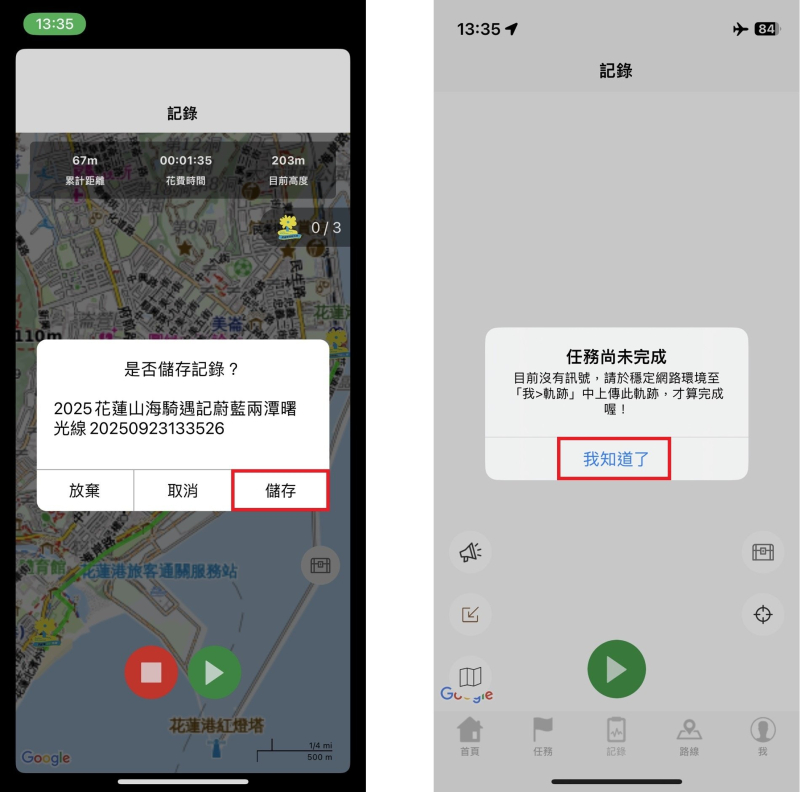
To finish and save your mission, press the red button twice (first to pause, then to stop).

Step 5: Upload Your GPX Track / Complete the Mission
If your phone has a stable internet connection when you end and save the mission, the app will automatically upload your track. You can skip this step.
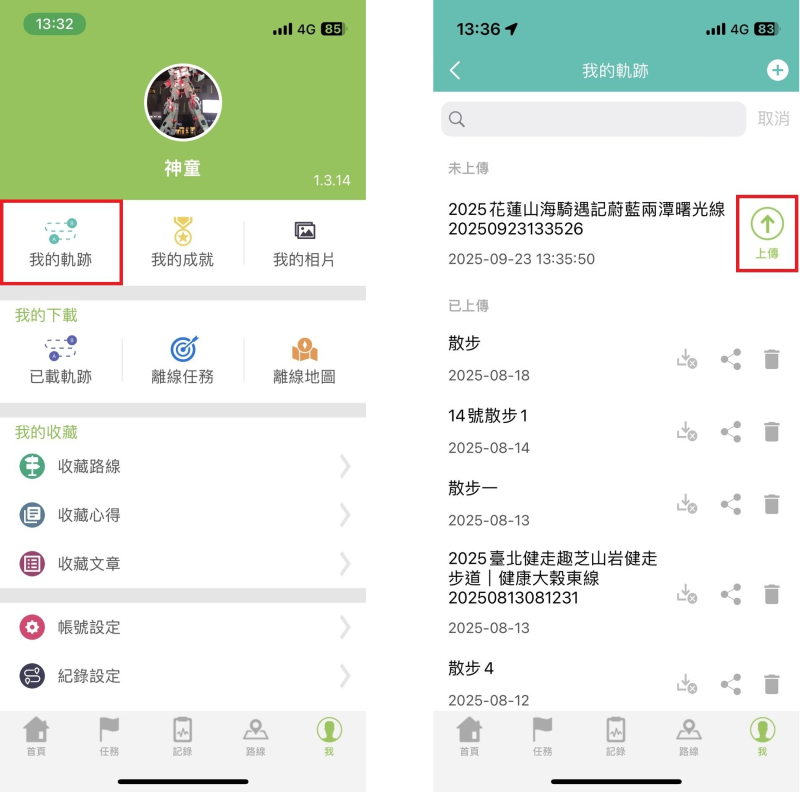
If your phone was in Airplane Mode or had no signal, you must manually upload your track later. Once you are in a location with a good network signal, turn off Airplane Mode, go to "Me" > "My Tracks," find your latest track record, and tap "Upload." This step is required for your collected virtual gems to be officially counted!
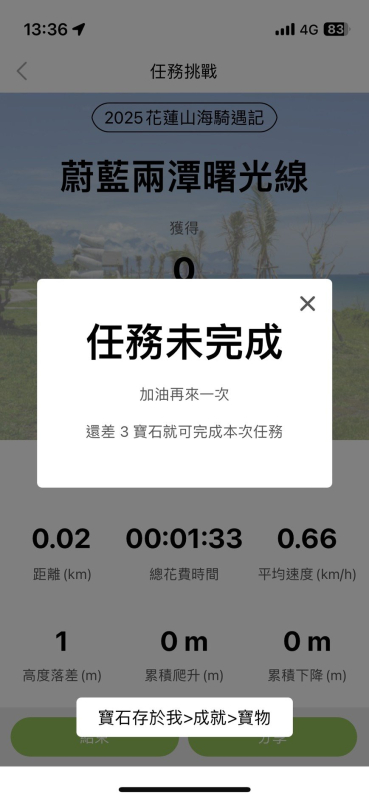
After a successful upload, the system will check if you have collected all the gems. If you missed any, the mission will be marked as incomplete. If you collected all the gems, you will see a confirmation that the mission is complete.
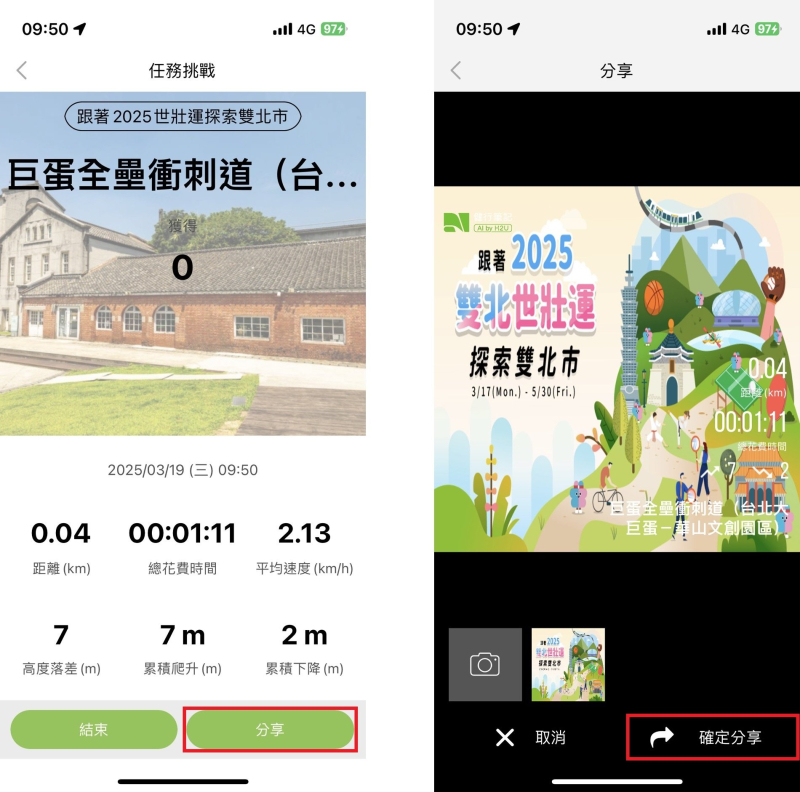
You can share your achievement and hiking record on social media platforms like Facebook and LINE.
[Bonus Tip] How to Check Your Achievements |
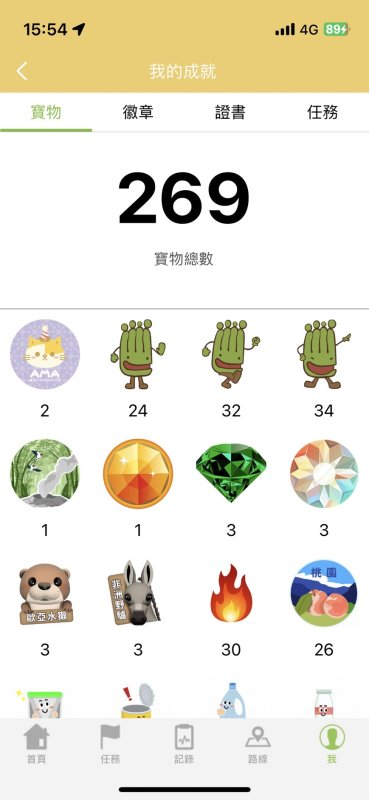
Go to "Me" > "Achievements" to see all your accomplishments from using the app, including collected treasures, badges, certificates, and completed missions!